
Diagnostics#
Open Settings. In the sidebar, scroll to Support and select Diagnostics.
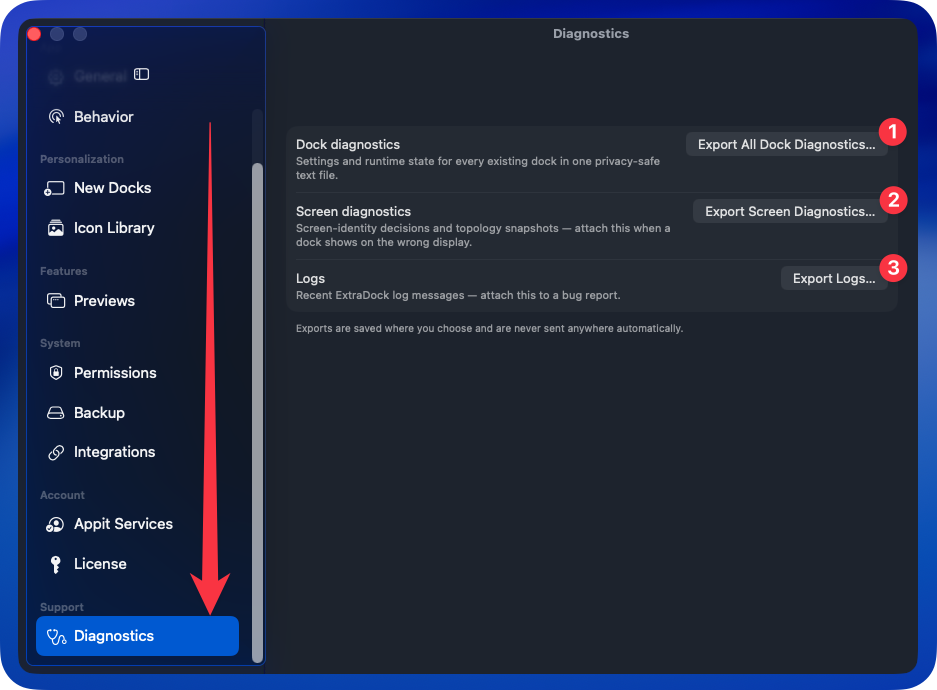
Choose the export that matches the problem you are reporting.
Performance diagnostics#
Export Performance Diagnostics records about ten seconds of CPU, memory, and wakeup activity plus relevant logs. Start it while the slowdown, lag, or battery drain is happening and keep using your Mac normally; use it for high CPU use, slow previews, or an unresponsive dock.
Dock diagnostics#
Export All Dock Diagnostics saves the settings and runtime state of every dock in one text file. Item paths, custom item names, network addresses, and window titles are left out. You can also export diagnostics for a single dock by right-clicking it in the Manager sidebar and choosing Export Dock Diagnostics. The export records who last turned a dock off or hid it, such as a DockFlow preset or a Focus filter.
Screen diagnostics#
Export screen diagnostics with Export Screen Diagnostics when a dock appears on the wrong display, moves after a reconnect, or forgets an assignment. The file holds screen-identity decisions and display layout snapshots as JSON. The same export is available in the dock's Screens section.
Logs#
Export logs with Export Logs soon after reproducing a problem and before quitting ExtraDock; the file holds the last day of ExtraDock log messages. The export also includes a Software updates section covering the last three days of update activity, with your user name and home folder path removed.
Review exported files before sending them; dock reports include dock names and display names. ExtraDock saves them where you choose and does not send them automatically. Email the relevant exports and reproduction steps to support@appitstudio.com.