
Diagnostics#
When you report a bug, ExtraDock can collect technical information that helps support understand what happened. It never sends this information automatically.
Exporting diagnostics#
Open Settings → Diagnostics. Choose the report that matches the problem:
- Export All Dock Diagnostics saves settings and runtime state for every dock.
- Export Screen Diagnostics saves display identities, layout, registry state, and each dock's assignment result as JSON.
- Export Logs saves the last few hours of log messages, including activation and performance details, plus the software update log of the last three days with your user name and home folder path removed.
ExtraDock saves the export where you choose. Reports can contain dock names, display identifiers, file names, or paths, so review them before sharing.
Copying one dock's debug information#
Open the management window, then:
- Select the affected dock.
- Open Properties.
- Scroll down to Actions.
- Click Copy Debug Info.
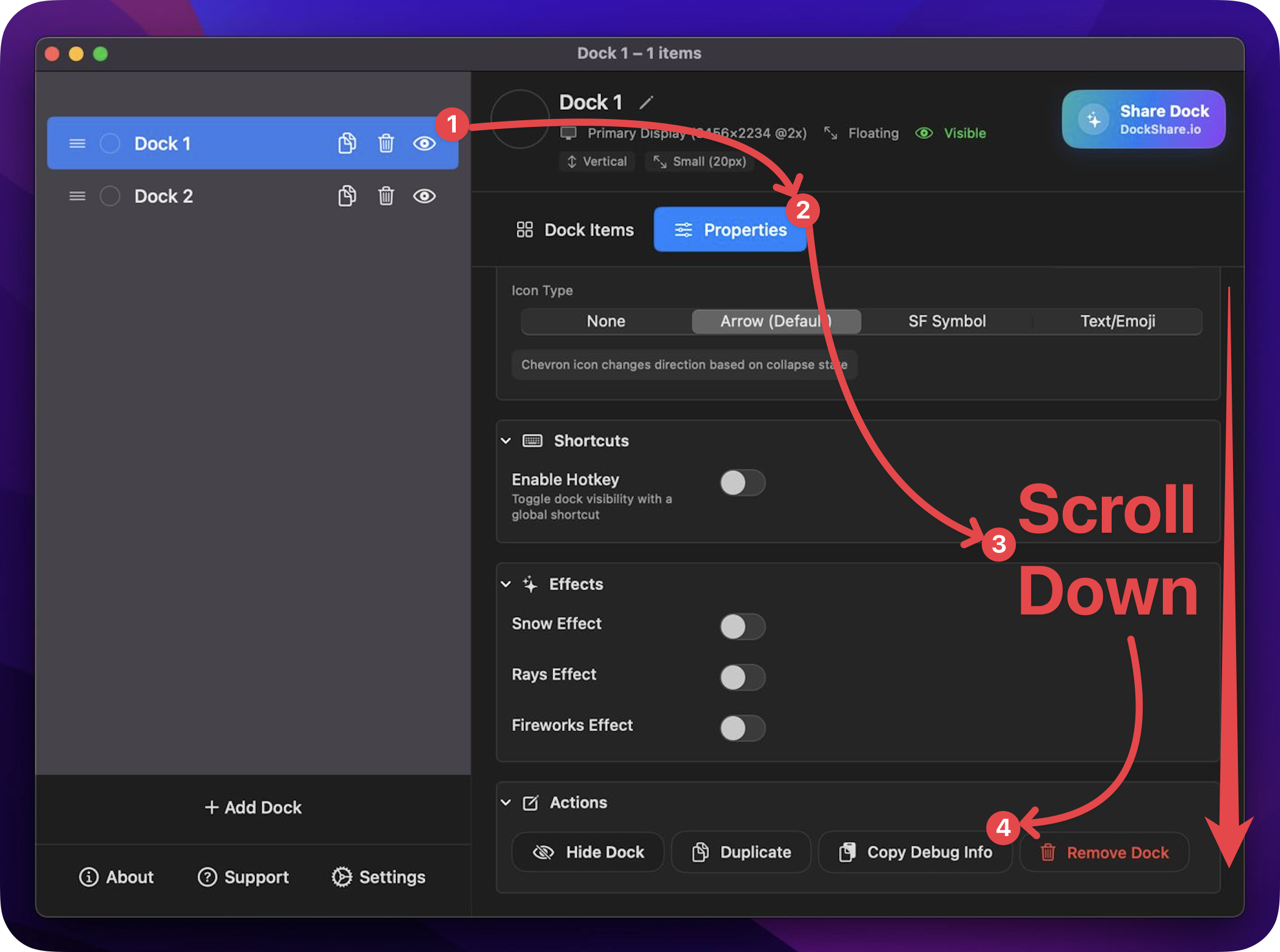
Copy Debug Info copies the selected dock's troubleshooting information to the clipboard. Paste it into your message to support.
Sending a bug report#
To help support investigate:
- Reproduce the problem, if possible.
- Copy the affected dock's debug information, or export the relevant report from Settings → Diagnostics.
- Send the report or pasted text to support@appitstudio.com. Include a short description of what happened and the steps that triggered it.
ExtraDock 4 has no automatic error reporting; nothing leaves your Mac unless you send it.