How to

Move Files on Mac.
A Better alternative.

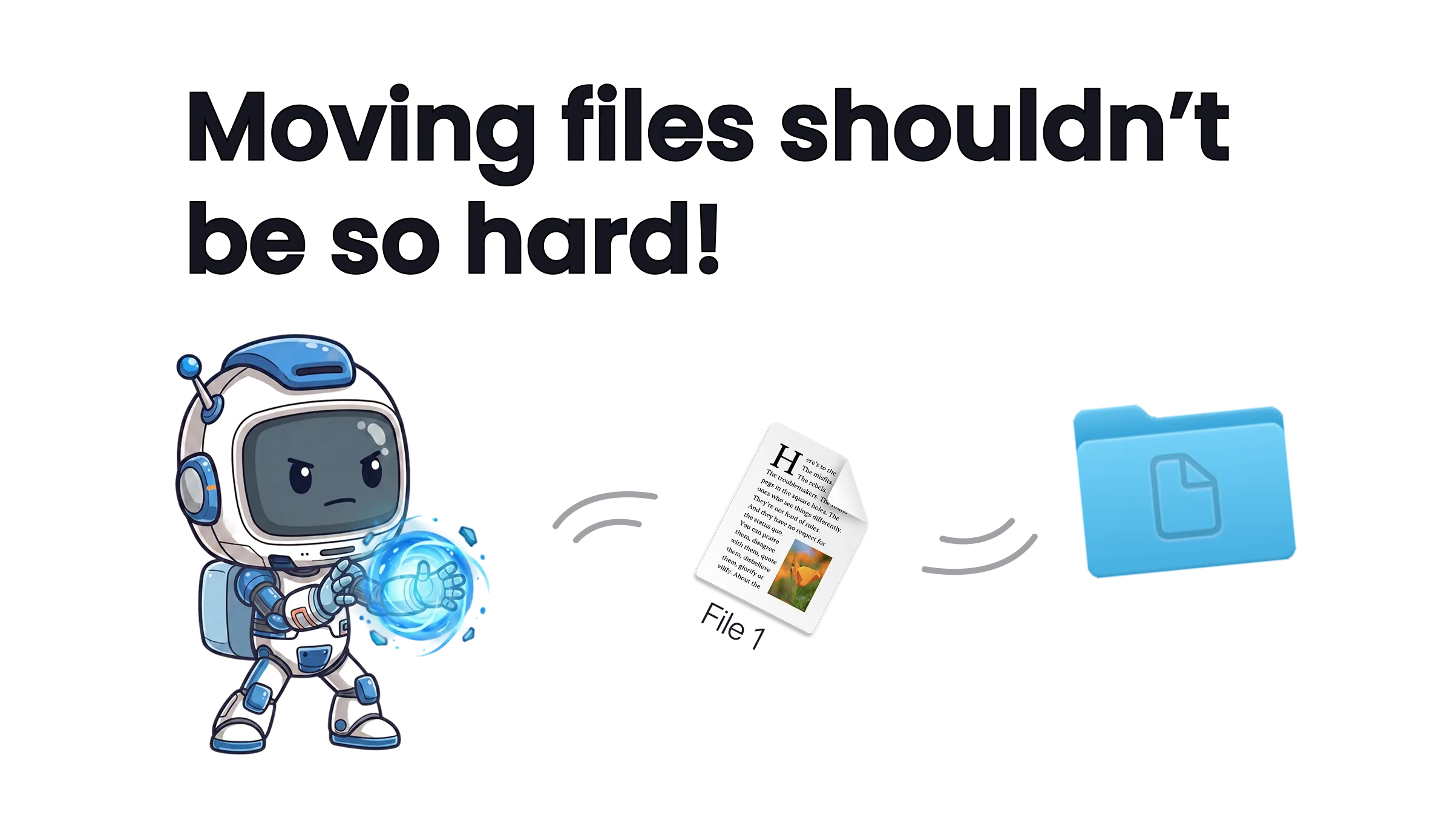
If you move files on Mac multiple times a day, there's a faster way than dragging across Finder windows.

macOS does have a move shortcut, Cmd+Option+V, but most people just drag and drop instead.

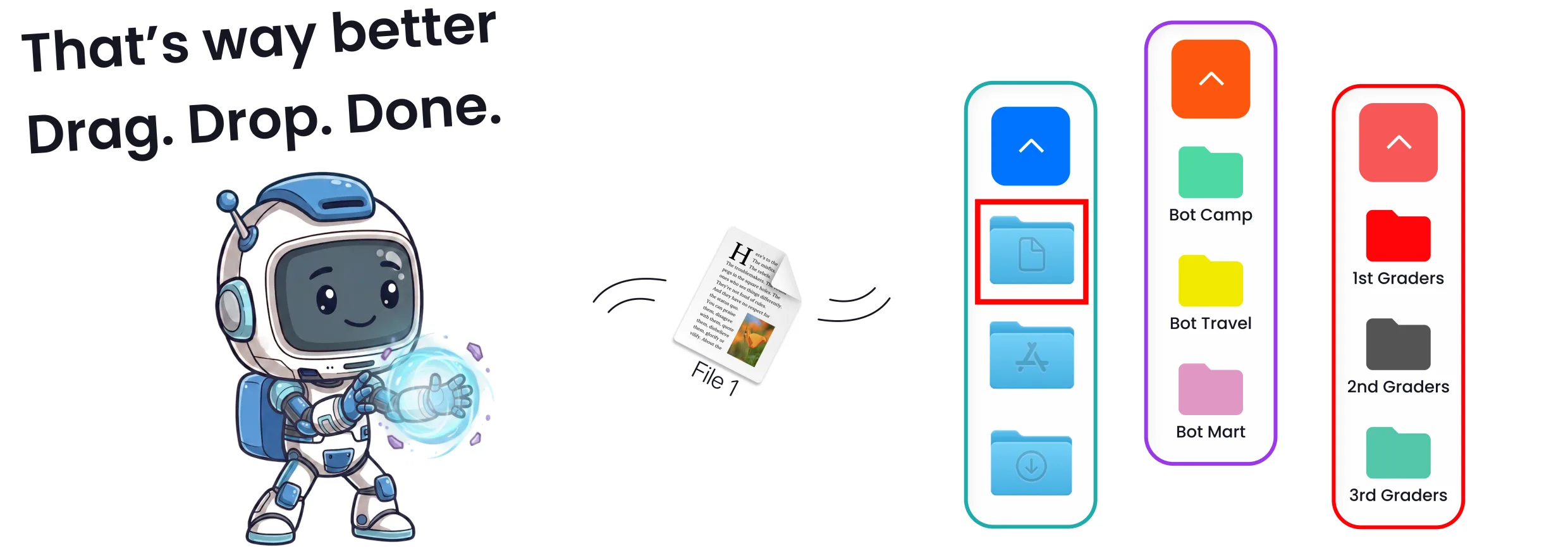
ExtraDock lets you drag and drop files directly onto folders without opening them, as well as a temporary file shelf that holds your files until you need them.

Get Started

14-day money-back guarantee.

Dragging and dropping a file onto a folder in the dock with ExtraDock
The shelf

Temporary Storage

Drag a file onto the shelf and it waits there for you.

Pull files together from different folders, switch windows or spaces, then drop them where they belong when you're ready.

No more holding a drag with one hand while you hunt for the right window with the other.
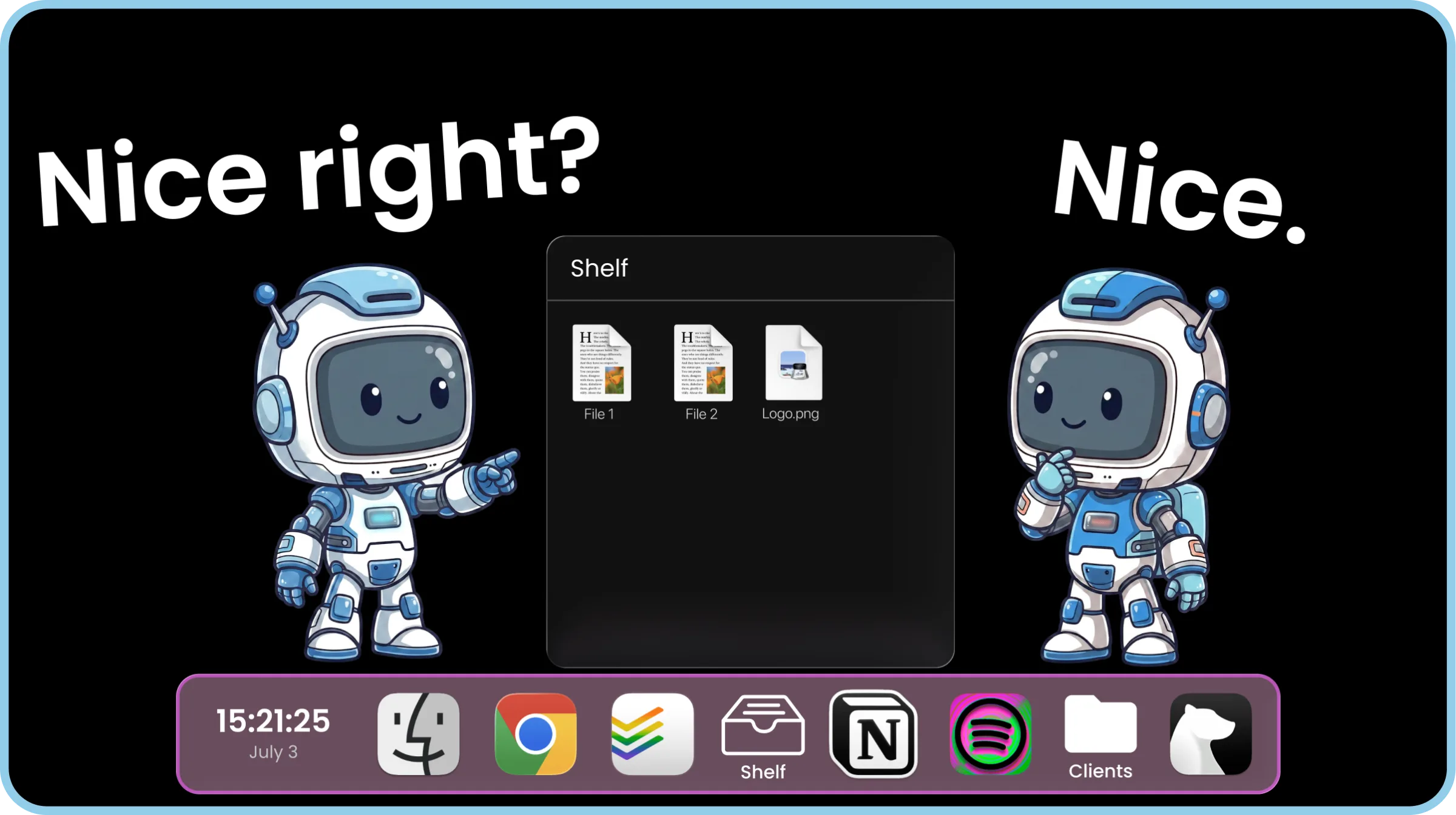
The ExtraDock file shelf holding files on a Mac
How it grew

More Than Docks

ExtraDock started simple: put a dock on every display. Over time it grew into an organizational hub for your Mac.

  • Drag and drop files directly into folders, no opening required.
  • A shelf that holds files while you move them around.
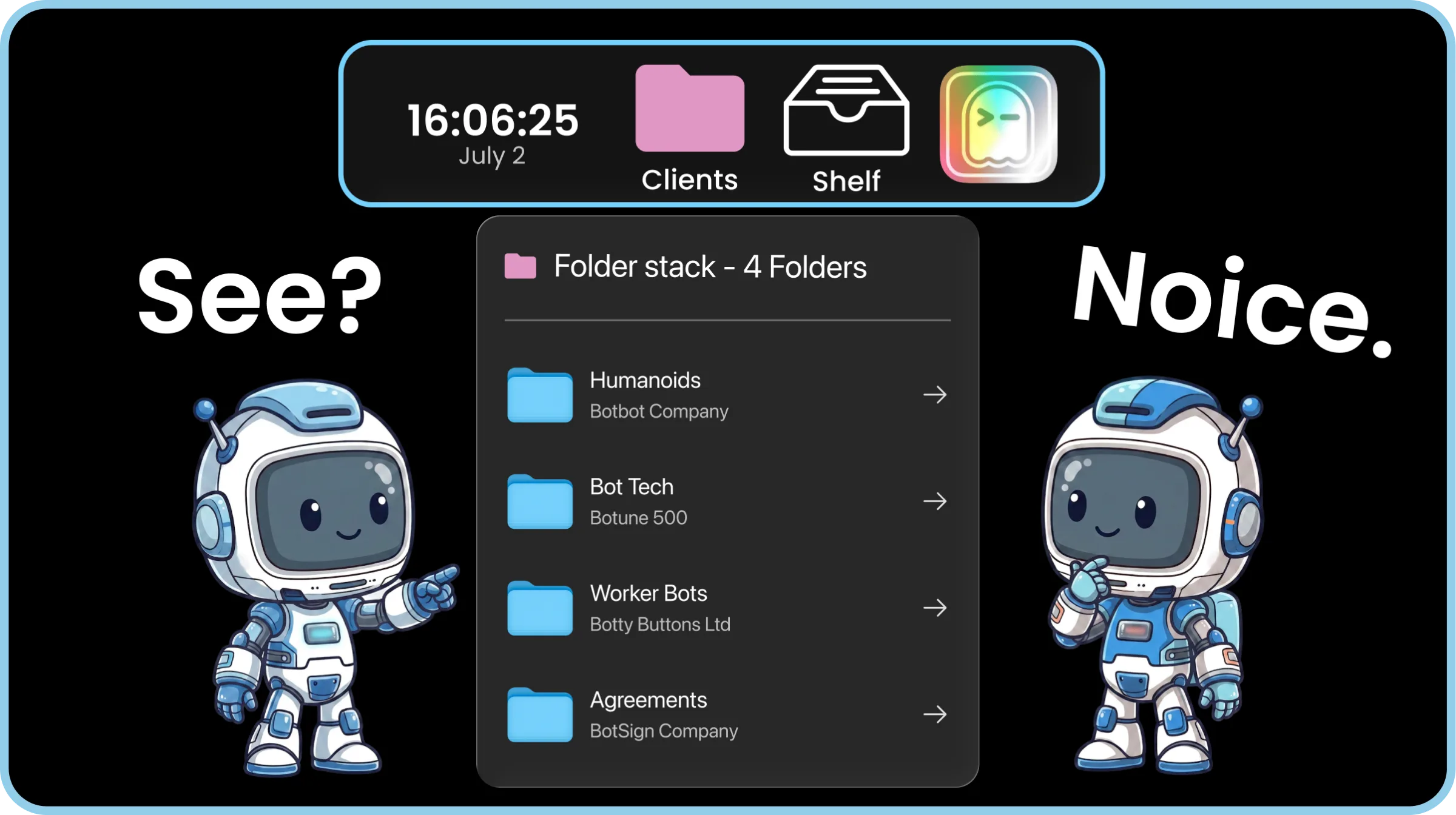
  • Folder Stack widget that lets you access unlimited folders of your choice from a single icon.
A separate Dock on a MacBook and an external screen with ExtraDock

ExtraDock does more than move files. See all the ways it customizes your Mac.

Awesome & Affordable Pricing

Nobody likes to pay for software. But even worse is if you pay, and it stops getting better.
So every license gets you everything — full app, all features, all updates.

14-day money-back guarantee
Fast support
One-time payment

Trusted by 1000+ Mac users worldwide

Part of a team?

Get multiple licenses for teams that care about productivity.

Premium Support

License Management Dashboard

Assign License by email

Contact us!

Meet the rest of the family

ExtraBar lets you build a menu bar around your actions.

DockFlow lets you create, switch, and manage Dock presets for different tasks.

Learn more

ExtraBar
ExtraDock
DockFlow

Frequently Asked Questions

Everything you need to know about ExtraDock.

ExtraDock gives you multiple lightweight docks that you can pin anywhere across your screens. Use it as an add-on to your native Dock, or go all-in and replace it entirely — it's up to you.
Yes. ExtraDock works independently of the native Dock, so you can use both side by side or hide the native Dock and let ExtraDock take over. It's designed to fit however you work.
ExtraDock supports macOS 12 and later, including macOS 26 Tahoe.
Yes. ExtraDock has a setting that ensures resized and maximized windows respect your docks and won't cover them.
Yes. You can choose from a variety of both visual and behavioral customizations — colors, effects, opacity, borders, custom app icons, as well as auto hide/show, hide on full screen, and more.
Partially. macOS does not provide a way to read badges for Apple apps such as Mail and Messages, so those cannot be shown. Third-party apps like Slack and WhatsApp work as expected.
Yes, with limitations. ExtraDock docks can be attached to a specific screen, so they appear when that screen connects and hide when it disconnects. This relies on macOS identifying each display consistently. DisplayLink monitors and displays connected through docking stations or daisy chains can behave inconsistently, especially after sleep or replugging, which can affect screen recognition.
Live Dock mirrors your native macOS Dock on any screen, either your full Dock or just running apps. Dock Awareness shows only the apps running in your current Space and updates as you switch. Both update dynamically.
ExtraDock Logo

Ready to take control?

Stop dragging files across Finder windows. Drop them straight into folders, hold them on the shelf, and reach any folder from a single icon.

Get Started

ExtraDock takes care of your Dock.

What about your Menu Bar?

We just launched our new product - ExtraBar!

ExtraBar gives you a customizable menu bar with instant access to apps, deep links, and custom actions.

extrabar-image