How to

Customize the Mac Dock

Apple lets you customize Mac Dock settings in three ways: size, position, and hiding. Everything else is fixed.

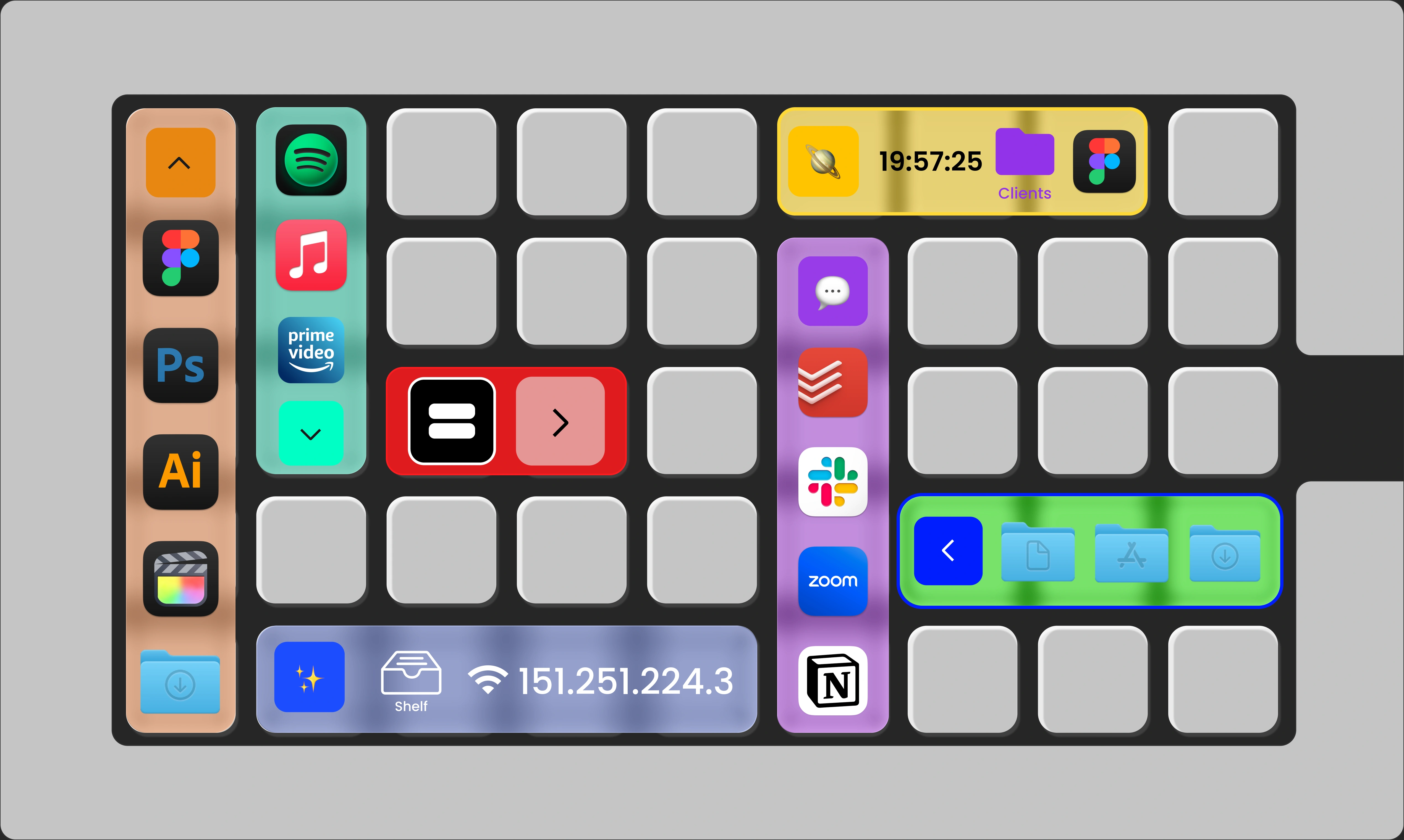
But what if you want more? A dock on every screen, custom app icons, widgets. ExtraDock adds all of that alongside the native Dock.

Get ExtraDock

14-day money-back guarantee.

Customize Mac Dock with ExtraDock — multiple custom docks alongside the native Dock

Six ways to go beyond the default

Appearance

Custom App Icons

macOS offers no way to change app icons in the Dock.

Workarounds edit the app itself but revert back with new updates.

ExtraDock sets custom icons per app, per dock, without touching the apps. Use any image and build the look you want.
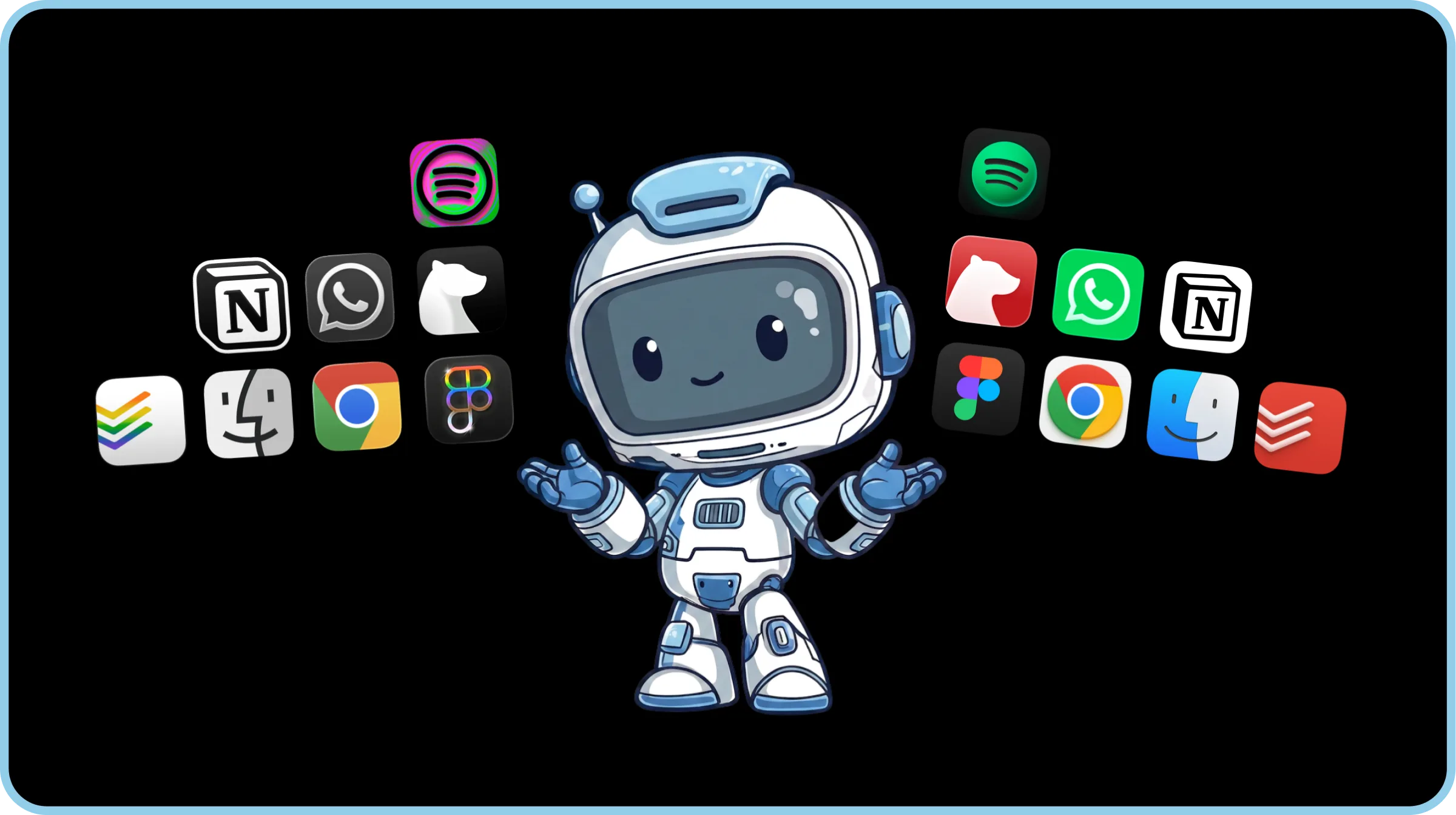
Replacing default macOS app icons with custom icons in ExtraDock
Feel

Make It… Whatever You Want!

Custom designs go as far as you want.

Give them funny eyes that'll make you happy every time you look at them, or clean monochrome for a relaxed feel.

Your dock, your rules.

Showcase

When a Dock Becomes Art

Some setups stop being a dock and start being part of the picture.

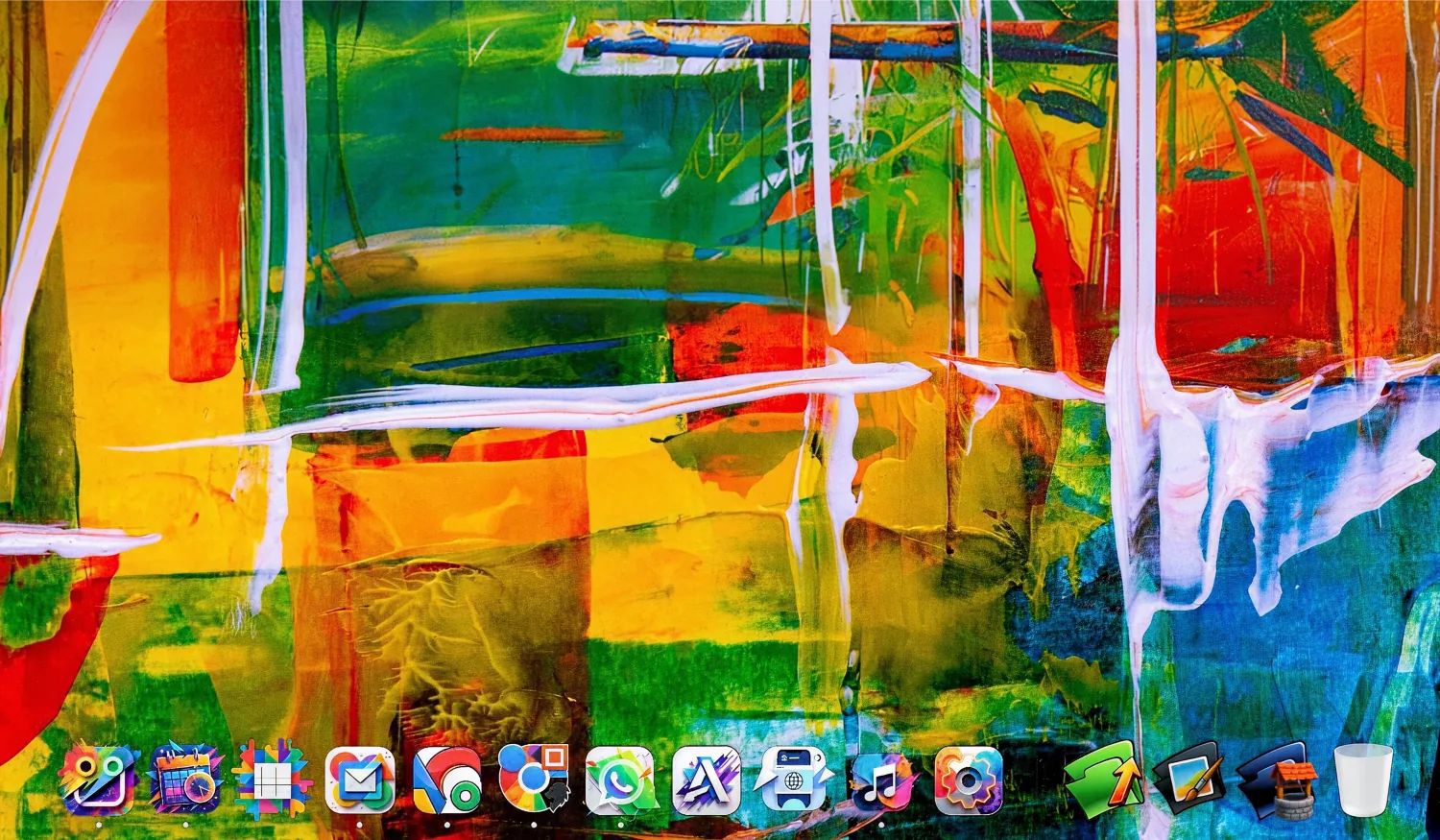
This one runs fully transparent, its abstract icons painted to match the wallpaper behind them.

At a certain point you can't tell where the dock ends and the art begins.

A fully transparent ExtraDock dock with custom abstract app icons over an abstract painted wallpaper
Credits to Andreshows, Author of the Dock Obsession series. Read the post

Make your setup yours.

Usability

Added Quality of Life

ExtraDock is not just for looks, it's built for daily use.

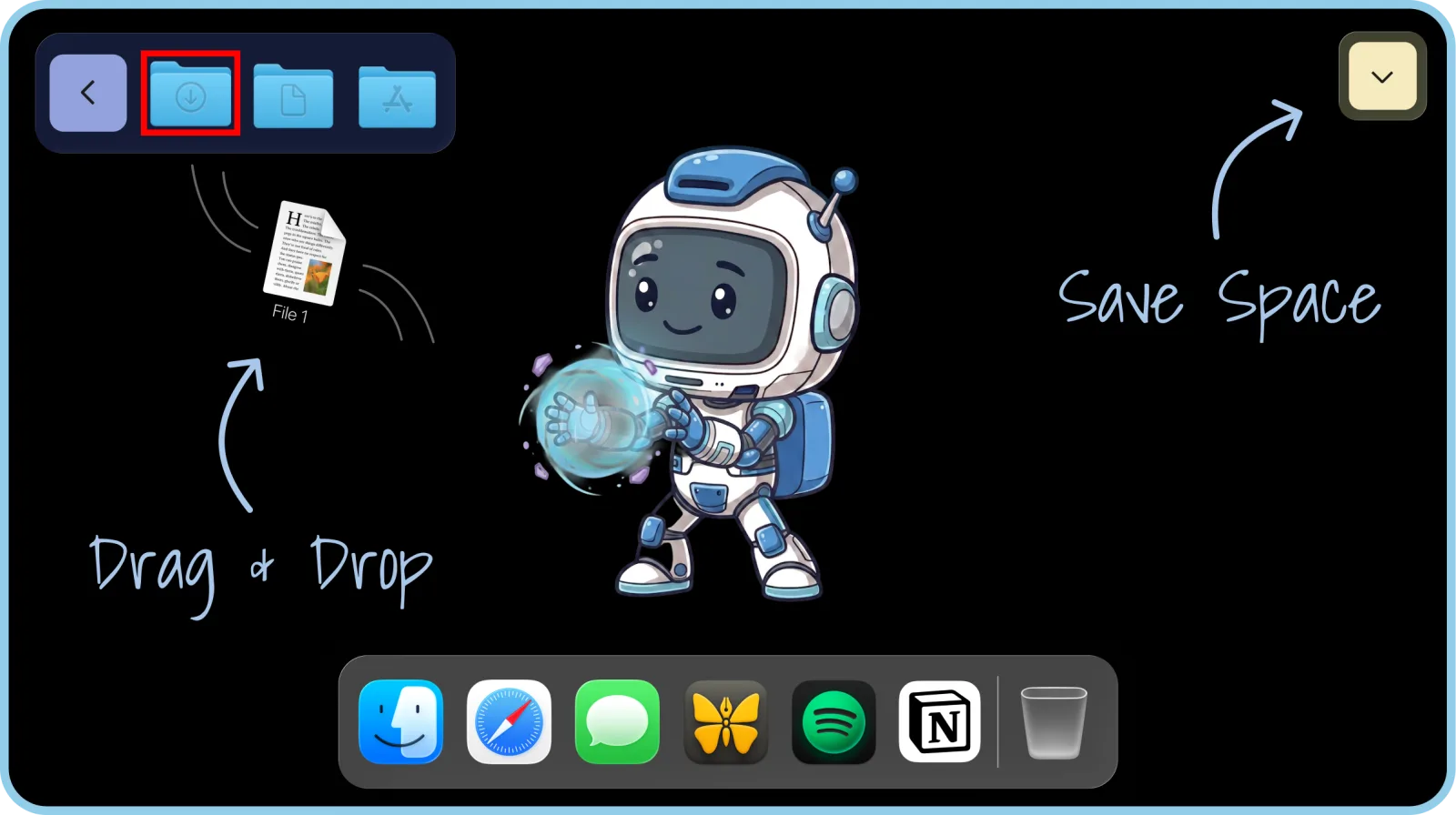
Drag and drop files directly into folders on your docks.

Collapse a dock when you want the space, hover to bring it back.

ExtraDock's ExtraBot mascot showing dock quality-of-life features
Utility

Temporary Storage

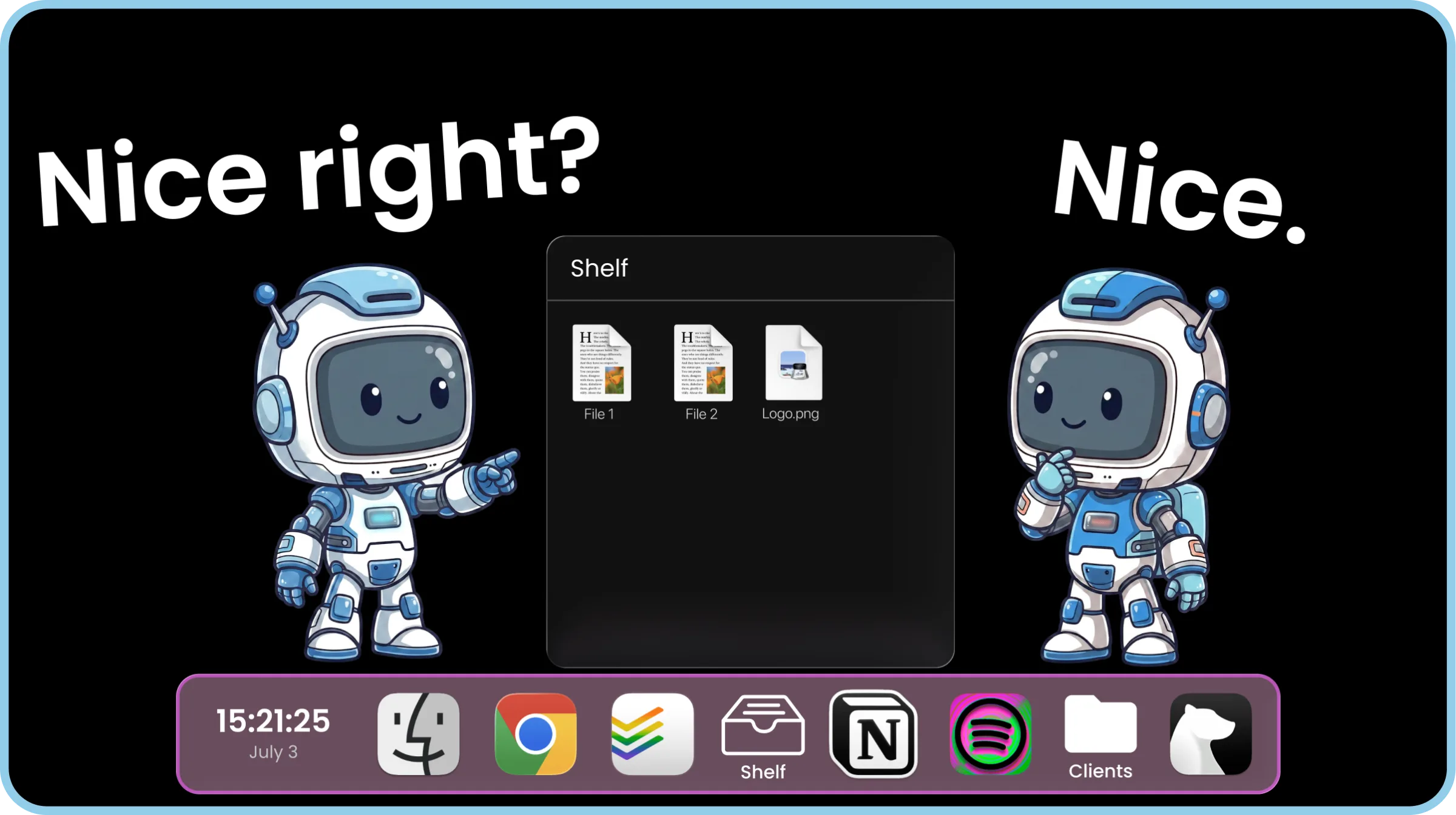
Drag a file onto the shelf and it waits there for you.

Pull files together from different folders, switch windows or spaces, then drop them where they belong when you're ready.

No more holding a drag with one hand while you hunt for the right window with the other.

ExtraDock's ExtraBot mascot holding files on the ExtraDock shelf
Utility

Unlimited Folders Behind One Icon

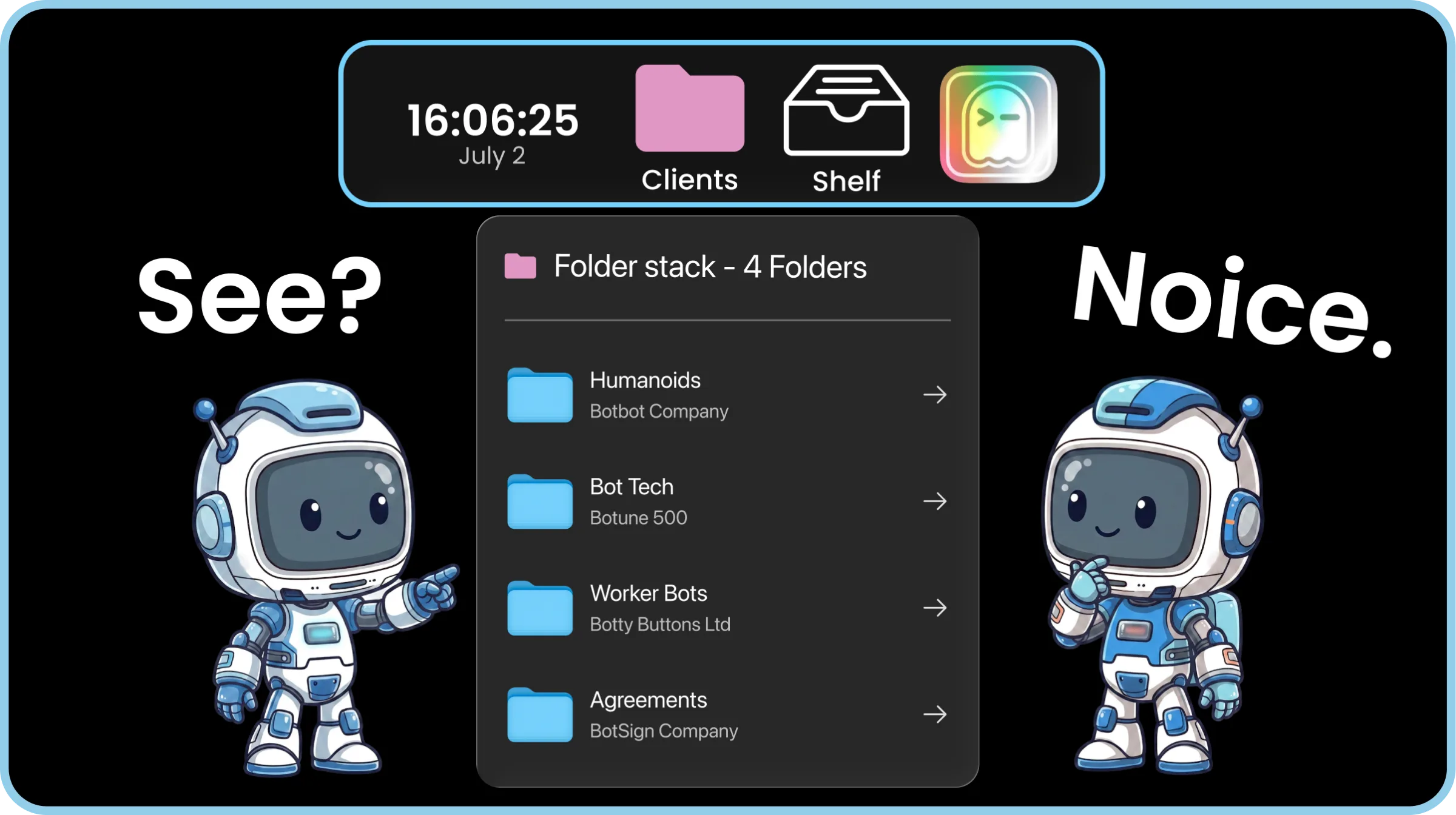
The Folder Stack widget keeps as many folders as you want behind a single dock icon.

Click it and jump straight into the folder you need.

Your dock stays clean, and your folders stay one click away.

ExtraDock's ExtraBot mascot with a Folder Stack of folders behind one dock icon

Awesome & Affordable Pricing

Nobody likes to pay for software. But even worse is if you pay, and it stops getting better.
So every license gets you everything — full app, all features, all updates.

14-day money-back guarantee
Fast support
One-time payment

Trusted by 1000+ Mac users worldwide

Part of a team?

Get multiple licenses for teams that care about productivity.

Premium Support

License Management Dashboard

Assign License by email

Contact us!

The 3-in-1 productivity bundle

ExtraBar brings custom actions to your menu bar.

DockFlow switches your Dock for every workflow.

Explore the Bundle

ExtraBar
ExtraDock
DockFlow

Frequently Asked Questions

Everything you need to know about ExtraDock.

ExtraDock gives you multiple lightweight docks that you can pin anywhere across your screens. Use it as an add-on to your native Dock, or go all-in and replace it entirely — it's up to you.
Yes. ExtraDock works independently of the native Dock, so you can use both side by side or hide the native Dock and let ExtraDock take over. It's designed to fit however you work.
ExtraDock supports macOS 12 and later, including macOS 26 Tahoe.
Yes. ExtraDock has a setting that ensures resized and maximized windows respect your docks and won't cover them.
Yes. You can choose from a variety of both visual and behavioral customizations — colors, effects, opacity, borders, custom app icons, as well as auto hide/show, hide on full screen, and more.
Partially. macOS does not provide a way to read badges for Apple apps such as Mail and Messages, so those cannot be shown. Third-party apps like Slack and WhatsApp work as expected.
Yes, with limitations. ExtraDock docks can be attached to a specific screen, so they appear when that screen connects and hide when it disconnects. This relies on macOS identifying each display consistently. DisplayLink monitors and displays connected through docking stations or daisy chains can behave inconsistently, especially after sleep or replugging, which can affect screen recognition.
Live Dock mirrors your native macOS Dock on any screen, either your full Dock or just running apps. Dock Awareness shows only the apps running in your current Space and updates as you switch. Both update dynamically.

Stock is just the
starting point.

Don't hesitate, we have a 14-day money-back guarantee.

Get ExtraDock

ExtraDock takes care of your Dock.

What about your Menu Bar?

We just launched our new product - ExtraBar!

ExtraBar gives you a customizable menu bar with instant access to apps, deep links, and custom actions.

extrabar-image