Comparison

uBar Alternative

A uBar alternative only earns the name if it does what uBar did, a dock on every Mac screen, without swapping your native Dock for a Windows-style taskbar.

ExtraDock does the same job without the trade. You keep the native Dock and add as many more as you want, on any screen, every one looking and behaving like the Mac.

Get ExtraDock

14-day money-back guarantee.

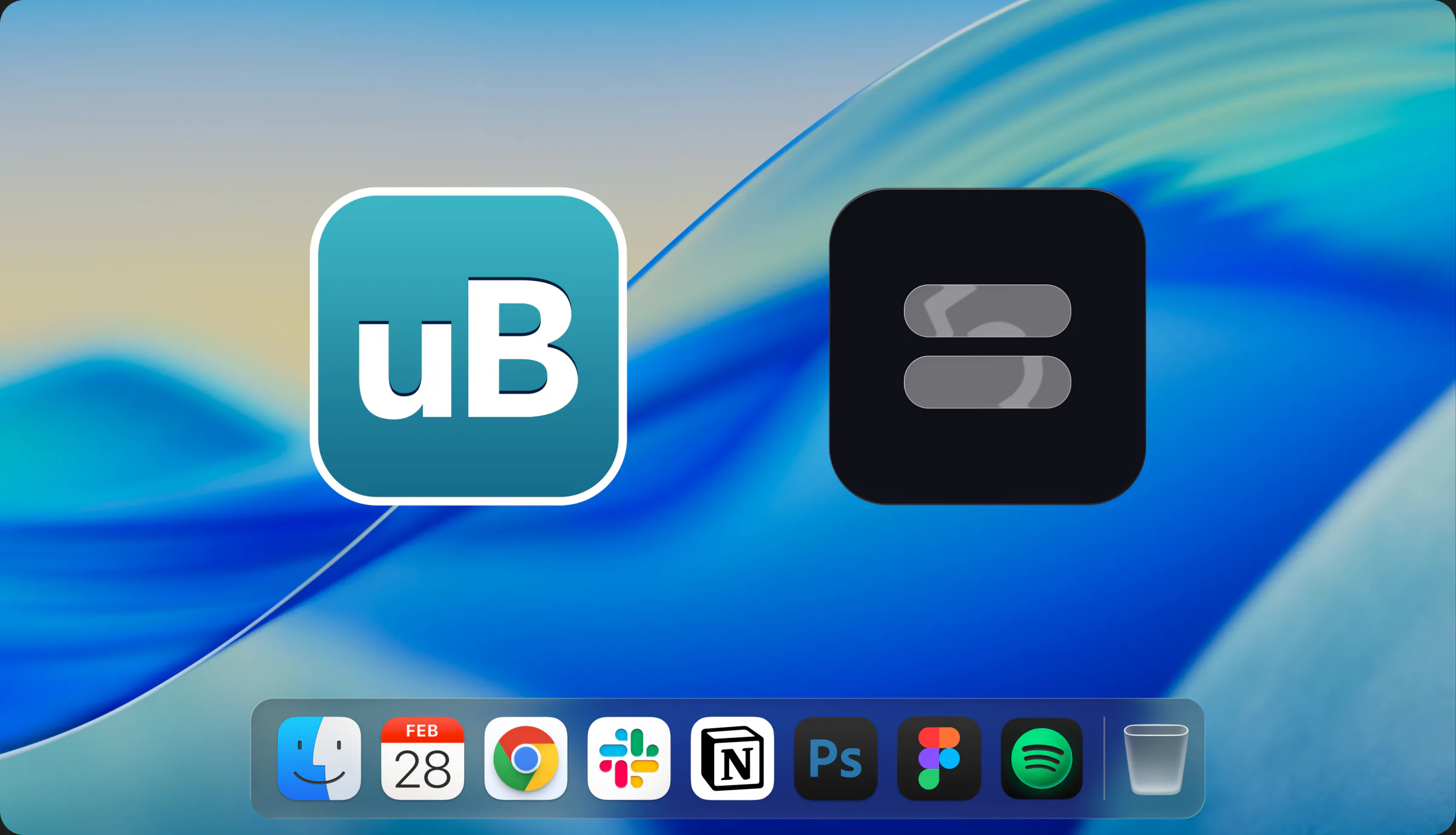
uBar and ExtraDock app icons side by side, comparing the two Mac dock apps

Two different approaches

uBar

A Taskbar on Your Mac

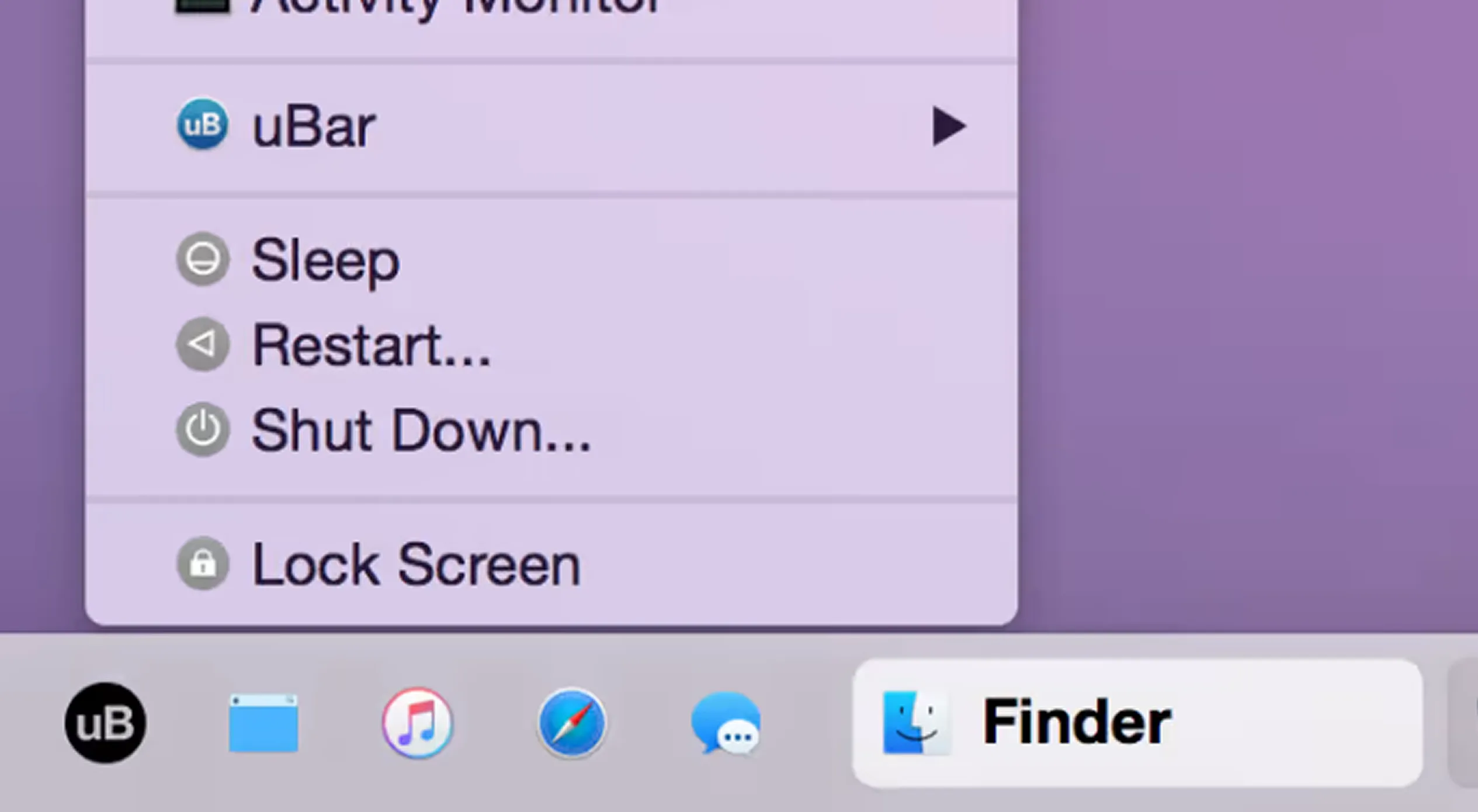
uBar recreates the Windows taskbar experience on macOS: a bar of running apps, window switching and grouping, and a panel that runs along the screen edge.

It's served thousands of Mac users since 2014. macOS has changed a lot since then, and uBar still works much the way it always has.
Since 2021, uBar has been in maintenance mode, the occasional fix for a new macOS release, but no real new development.

uBar running on macOS: a Windows-style taskbar of apps along the screen edge with the uBar menu open
New era

A native alternative

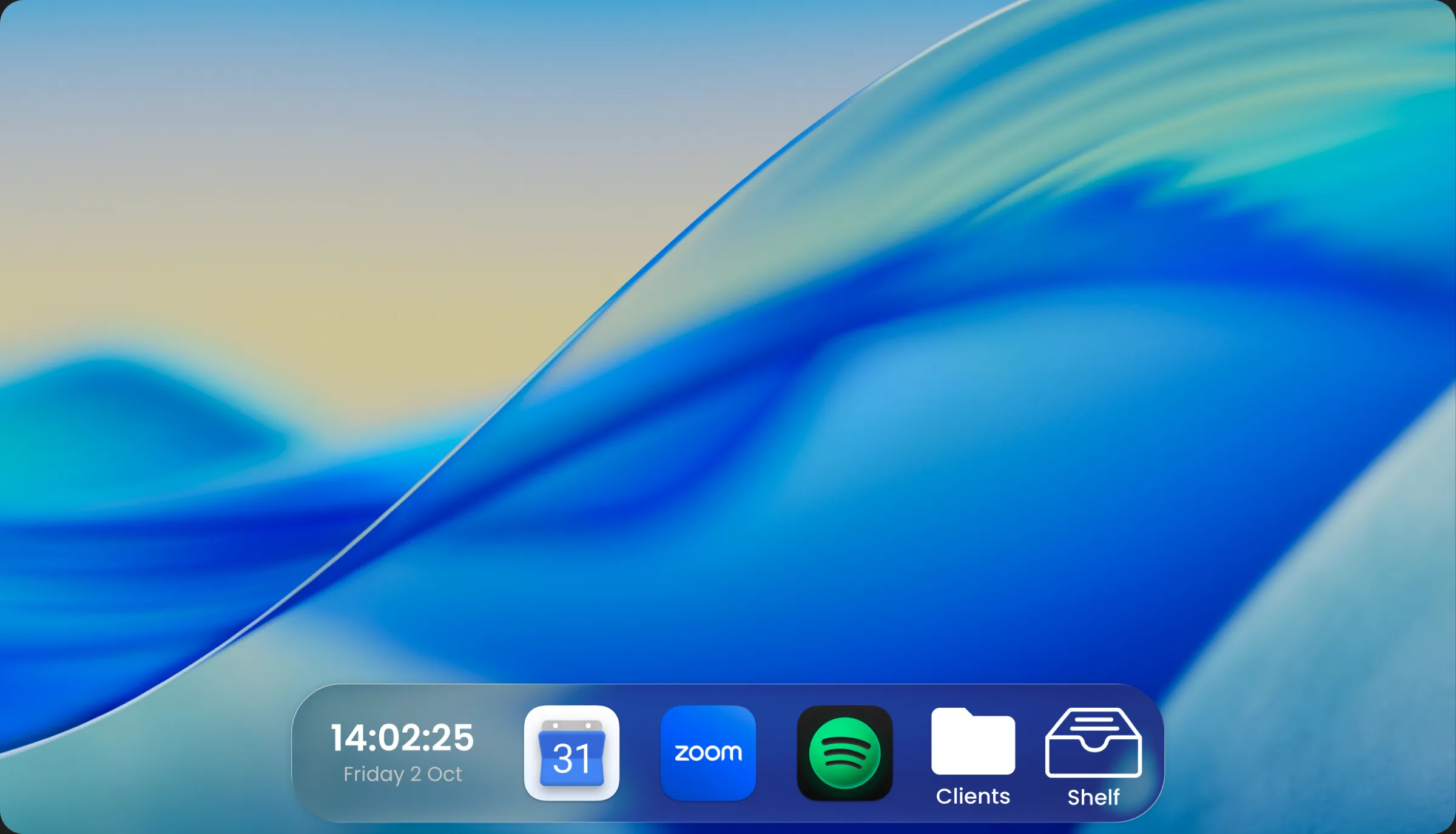
ExtraDock stays with the Mac aesthetic, and it's tackling the same problem uBar did, a dock on every screen.

The difference is how. uBar replaces your Dock with a Windows-style taskbar; ExtraDock keeps the real one and mirrors it onto every screen, or lets you add custom docks of your own.

Put a dock on every screen
ExtraDock placing a native macOS dock on every screen across multiple monitors
Customization

Personalize the Look, Keep the Feel

No two docks have to look alike. Each one has its own colors, effects, borders, opacity, and icons.

Swap app icons, tint a dock to match your wallpaper, or give every project its own look. All of it stays within the macOS aesthetic.

See how to customize the Mac dock
Customizing an ExtraDock dock: colors, icons, and layout changing live

uBar vs ExtraDock at a glance

We pulled uBar's capabilities from its own feature list, so the table reflects what both apps actually do.

Capability ExtraDock uBar
Actively developed Yes No
A dock on every screen Yes Yes
Native macOS dock look Yes No
Works alongside the native Dock Yes No
Multiple docks on one screen Yes No
Place a dock anywhere on screen Yes No
Window grouping No Yes
Dock widgets Yes Partial
Custom icons per dock Yes No
Pricing €9.99+ $30

Awesome & Affordable Pricing

Nobody likes to pay for software. But even worse is if you pay, and it stops getting better.
So every license gets you everything — full app, all features, all updates.

14-day money-back guarantee
Fast support
One-time payment

Trusted by 1000+ Mac users worldwide

Part of a team?

Get multiple licenses for teams that care about productivity.

Premium Support

License Management Dashboard

Assign License by email

Contact us!

The 3-in-1 productivity bundle

ExtraBar brings custom actions to your menu bar.

DockFlow switches your Dock for every workflow.

Explore the Bundle

ExtraBar
ExtraDock
DockFlow

Frequently Asked Questions

Everything you need to know about ExtraDock.

ExtraDock gives you multiple lightweight docks that you can pin anywhere across your screens. Use it as an add-on to your native Dock, or go all-in and replace it entirely — it's up to you.
Yes. ExtraDock works independently of the native Dock, so you can use both side by side or hide the native Dock and let ExtraDock take over. It's designed to fit however you work.
ExtraDock supports macOS 12 and later, including macOS 26 Tahoe.
Yes. ExtraDock has a setting that ensures resized and maximized windows respect your docks and won't cover them.
Yes. You can choose from a variety of both visual and behavioral customizations — colors, effects, opacity, borders, custom app icons, as well as auto hide/show, hide on full screen, and more.
Partially. macOS does not provide a way to read badges for Apple apps such as Mail and Messages, so those cannot be shown. Third-party apps like Slack and WhatsApp work as expected.
Yes, with limitations. ExtraDock docks can be attached to a specific screen, so they appear when that screen connects and hide when it disconnects. This relies on macOS identifying each display consistently. DisplayLink monitors and displays connected through docking stations or daisy chains can behave inconsistently, especially after sleep or replugging, which can affect screen recognition.
Live Dock mirrors your native macOS Dock on any screen, either your full Dock or just running apps. Dock Awareness shows only the apps running in your current Space and updates as you switch. Both update dynamically.
ExtraDock Logo

Ready for your
ExtraDocks?

If you're done with a single, overcrowded Dock, grab ExtraDock now and take full control of your multi-monitor workspace.

Get ExtraDock Now

ExtraDock takes care of your Dock.

What about your Menu Bar?

We just launched our new product - ExtraBar!

ExtraBar gives you a customizable menu bar with instant access to apps, deep links, and custom actions.

extrabar-image