macOS Dock Alternatives Compared: From DragThing to ExtraDock
The macOS Dock has long been a staple of Apple's user interface, but for power users and multitaskers, its limitations can be frustrating. Fortunately, several alternatives have emerged over the years, each offering unique features to enhance productivity.
In this article, we'll compare some of the most notable macOS Dock replacements, from the classic DragThing to the modern ExtraDock, helping you choose the best fit for your workflow.
🧓 DragThing (Legacy)
Status: Discontinued
Features:
Multiple docks with customizable tabs
Drag-and-drop organization
Extensive theming options
Pros:
Highly customizable
Supported multiple docks and layouts
Cons:
No longer maintained
Incompatible with recent macOS versions
Ideal for: Users on older macOS versions seeking a classic Dock experience.
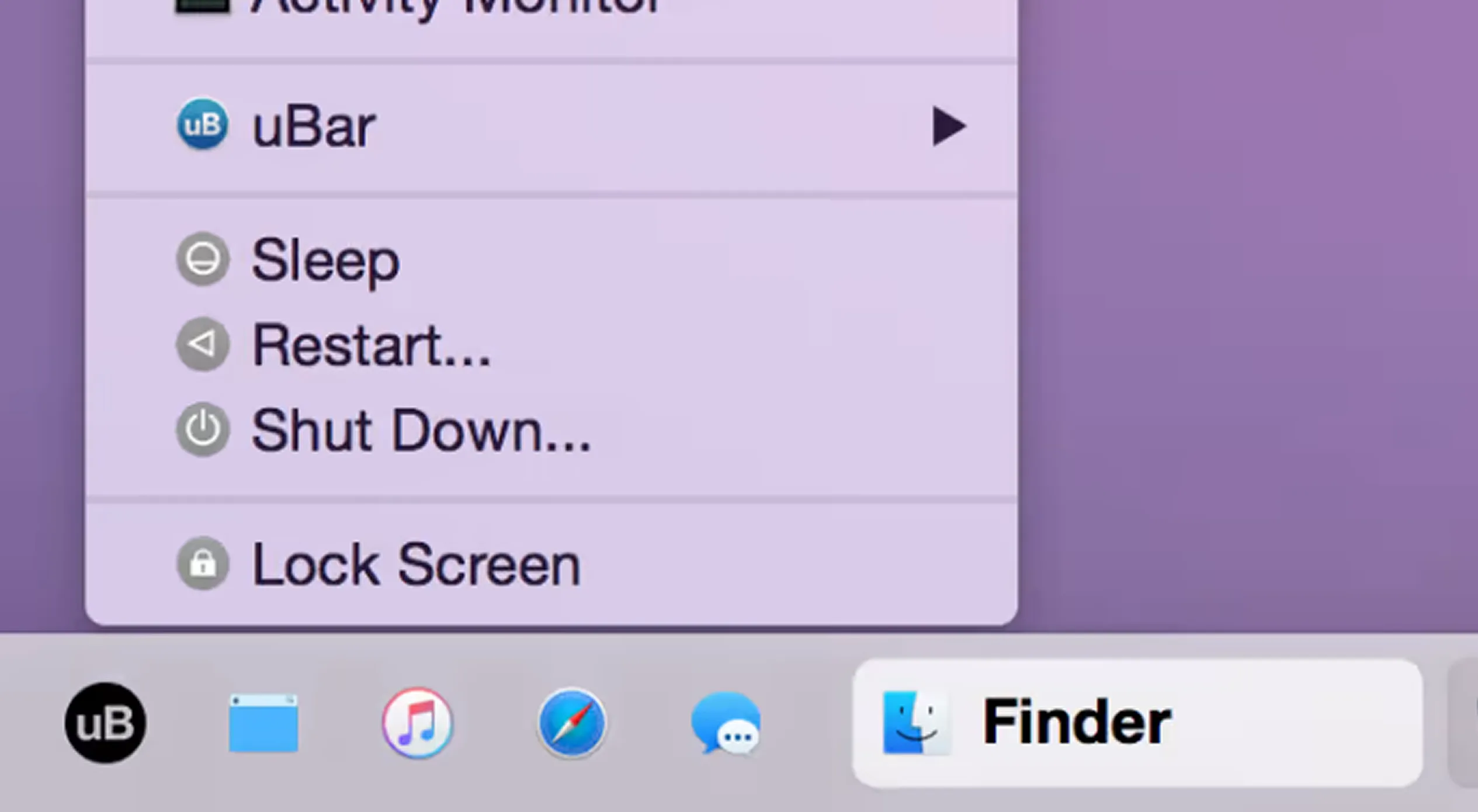
🪟 uBar
Status: Active
Features:
Windows-style taskbar for macOS
App window previews
Customizable themes and positions
Pros:
Familiar interface for Windows switchers
Efficient window management
Cons:
May feel out of place in macOS aesthetics
Limited customization compared to others
Ideal for: Users transitioning from Windows who prefer a taskbar layout.
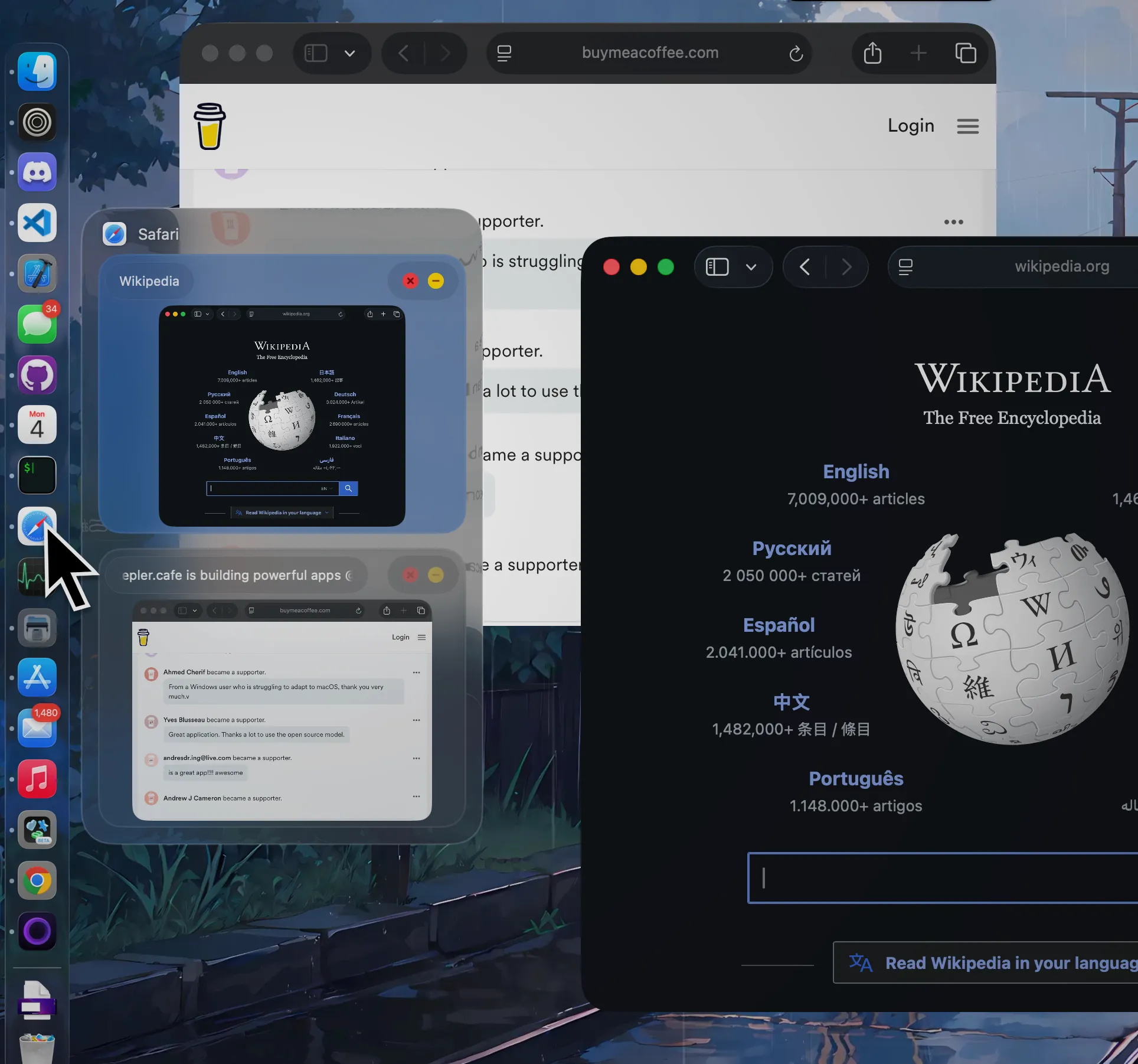
🧰 ActiveDock
Status: Active
Features:
Customizable Dock with themes
Window previews and management
Grouping of apps and documents
Start menu-like application launcher
Pros:
Highly customizable appearance
Enhanced window management features
Cons:
Some features require Pro version
May have a learning curve for new users
Ideal for: Users seeking a feature-rich and customizable Dock experience.
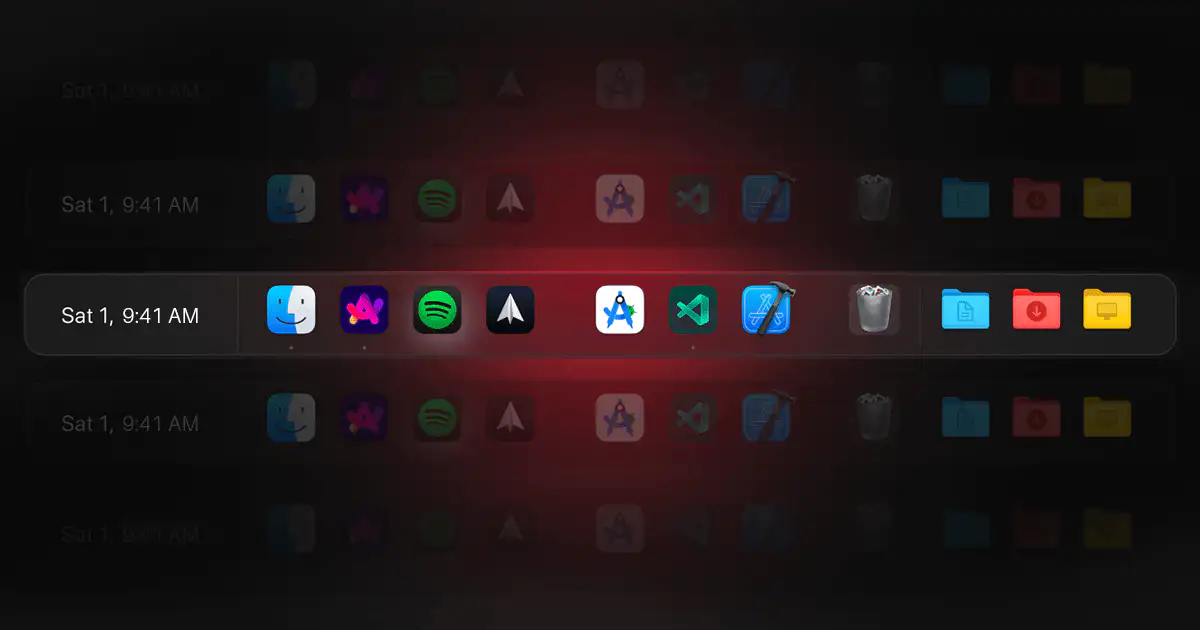
🧱 ExtraDock
Status: Active
Features:
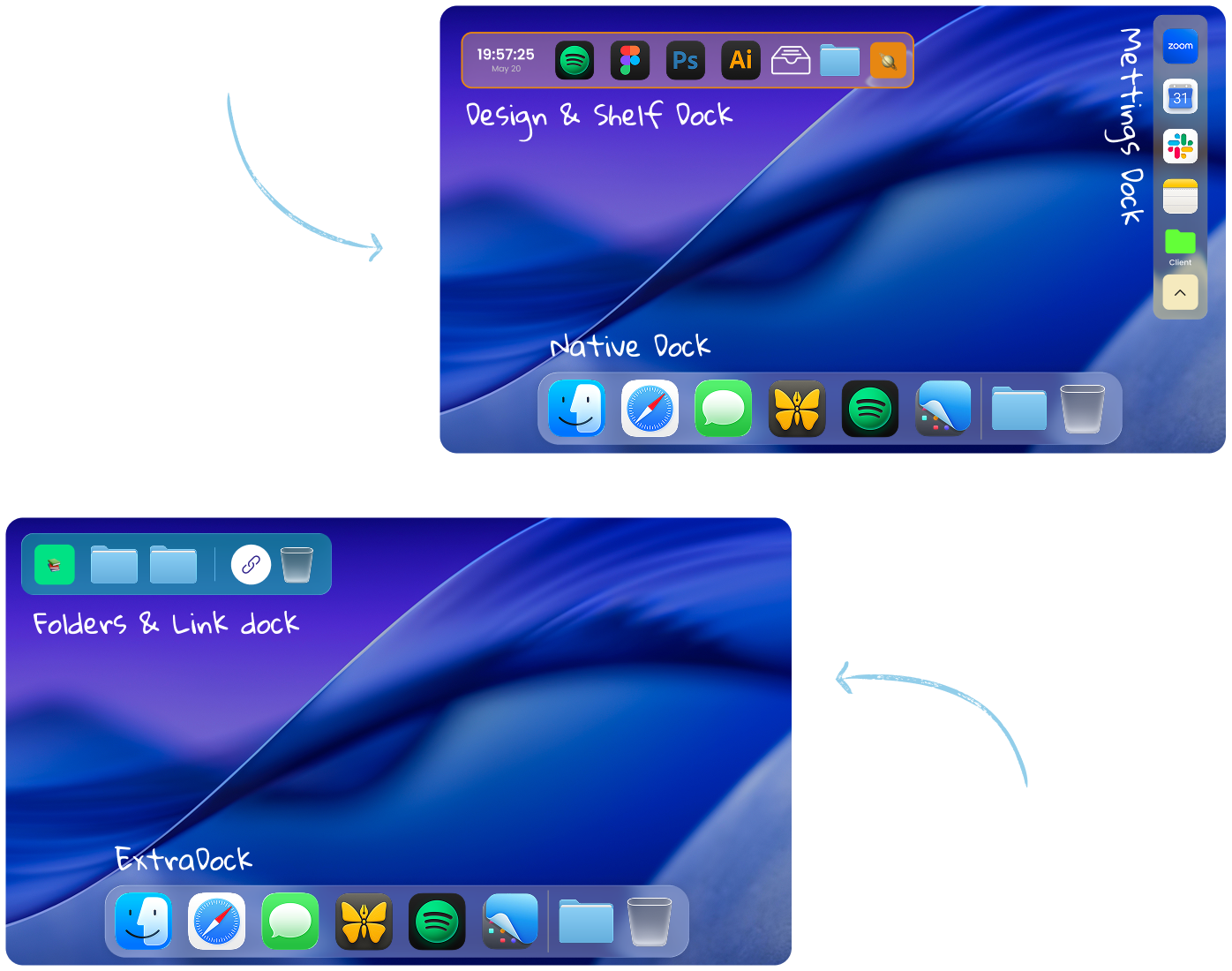
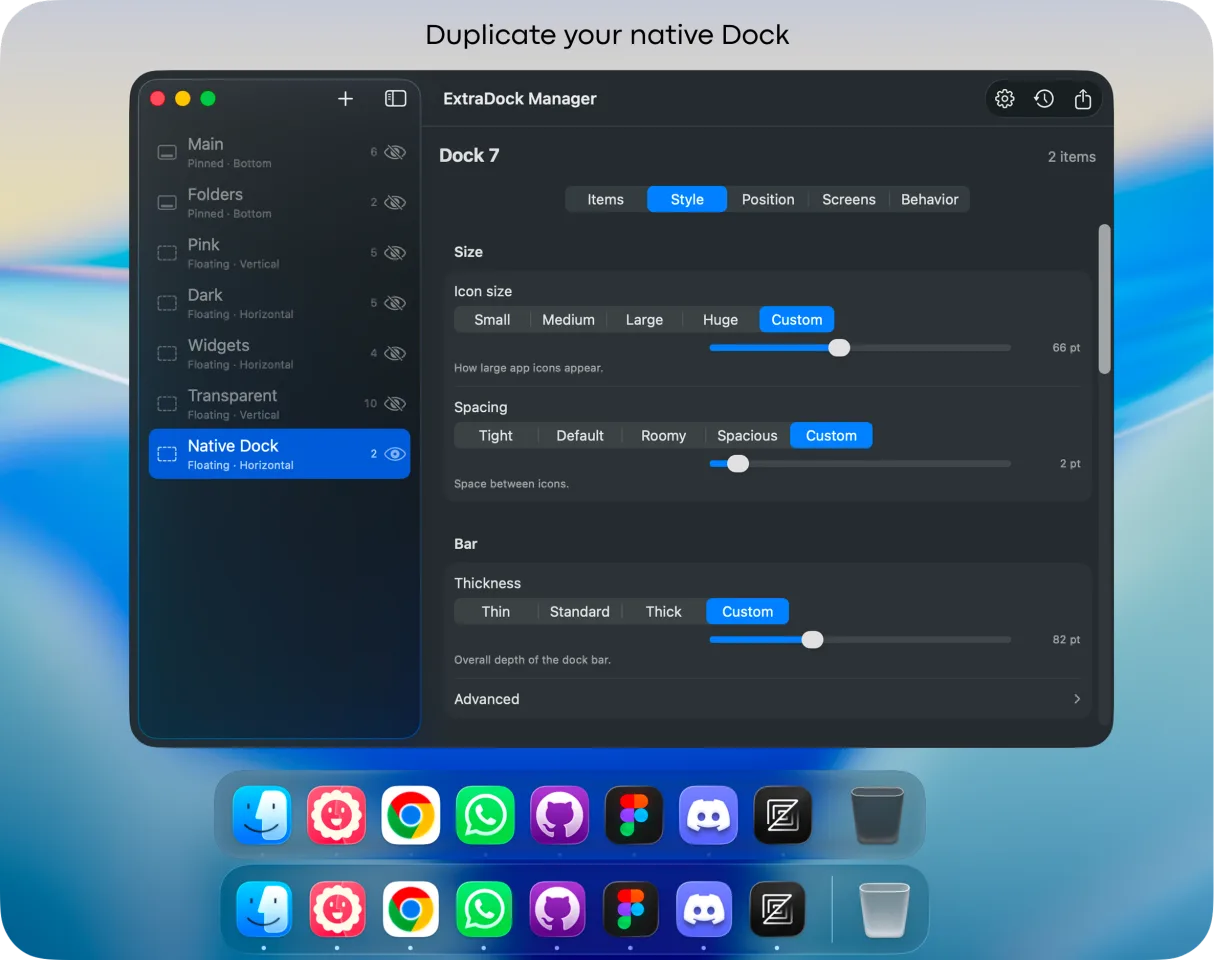
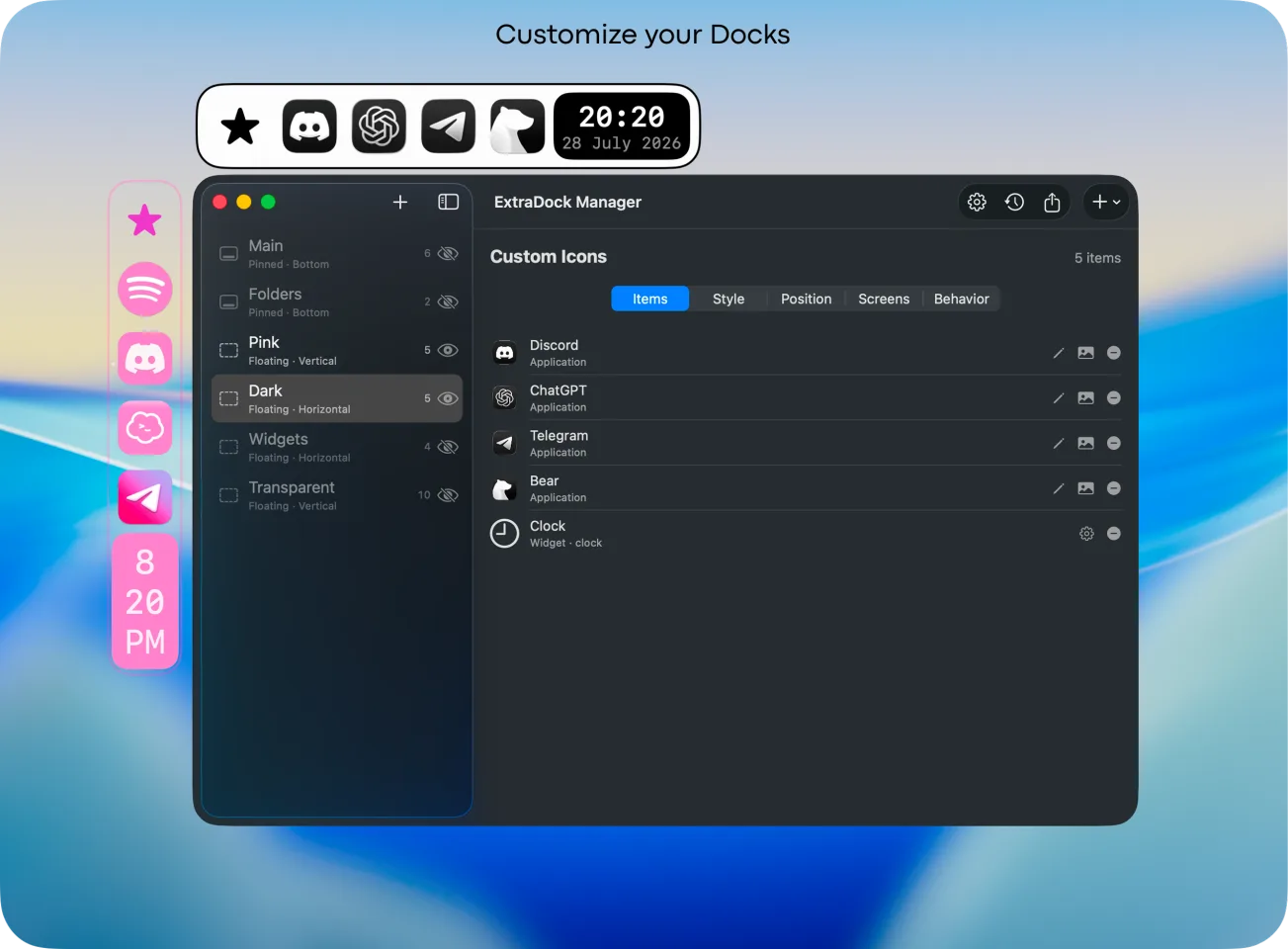
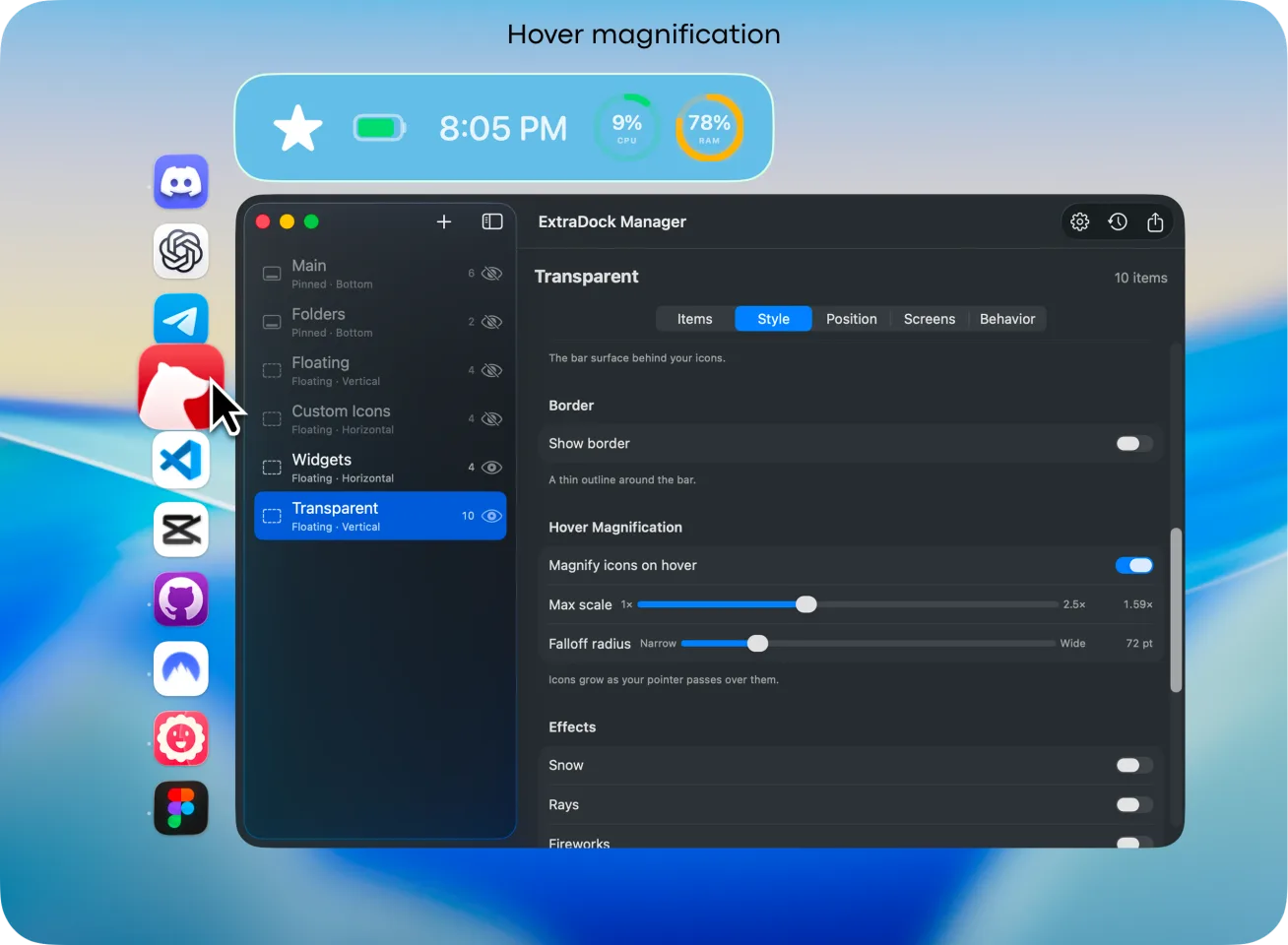
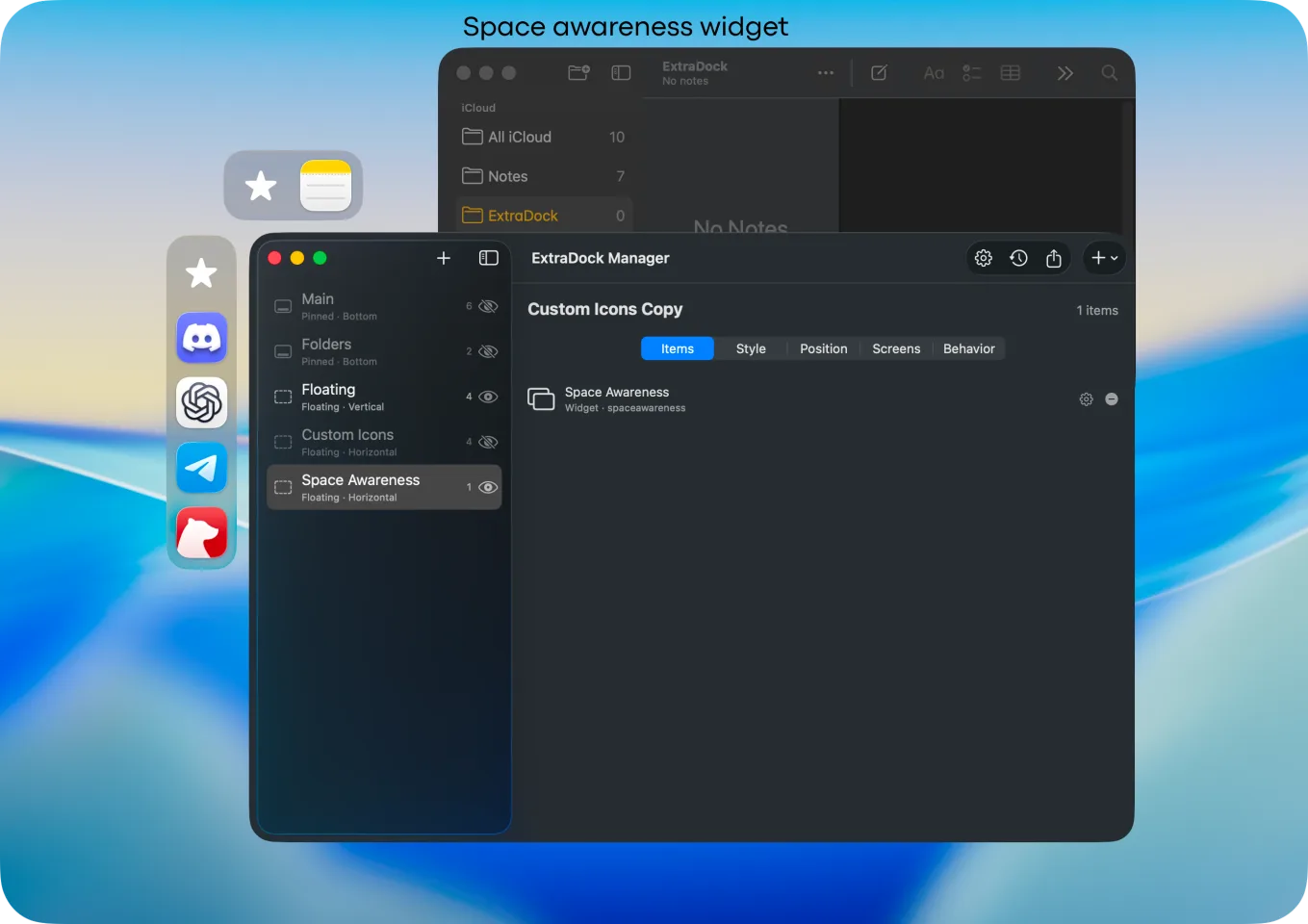
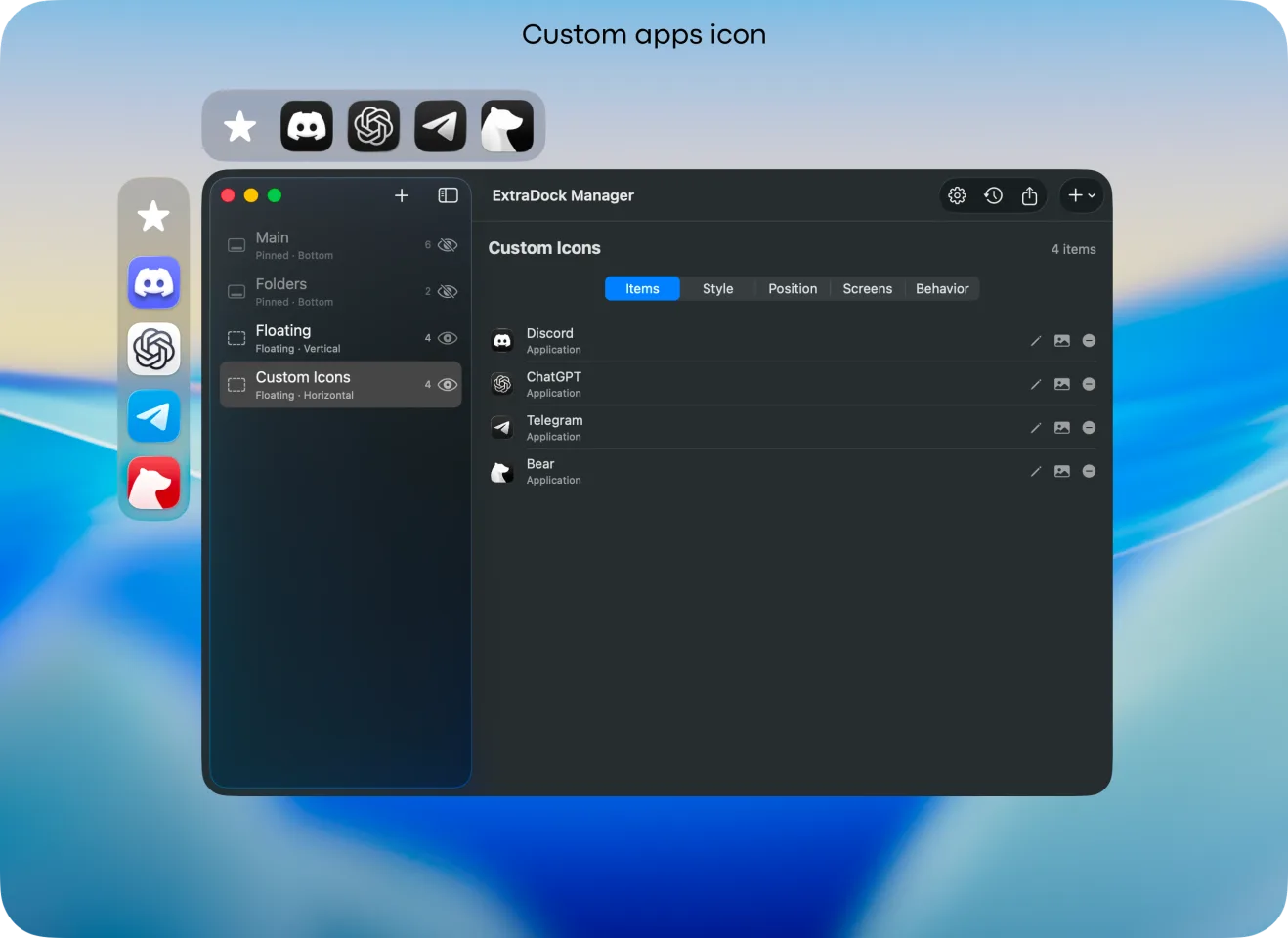
Create multiple floating docks
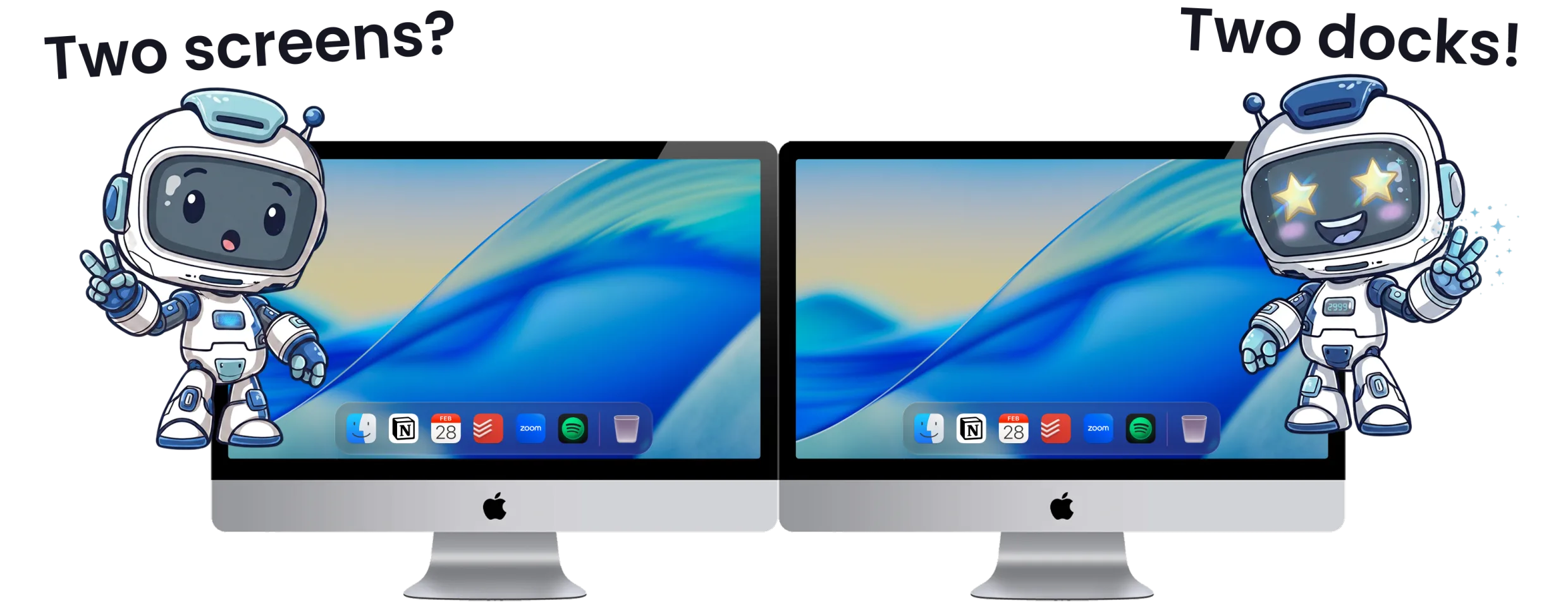
Position docks on any screen or location
Lightweight and non-intrusive
No replacement of the system Dock
Pros:
Simple and intuitive setup
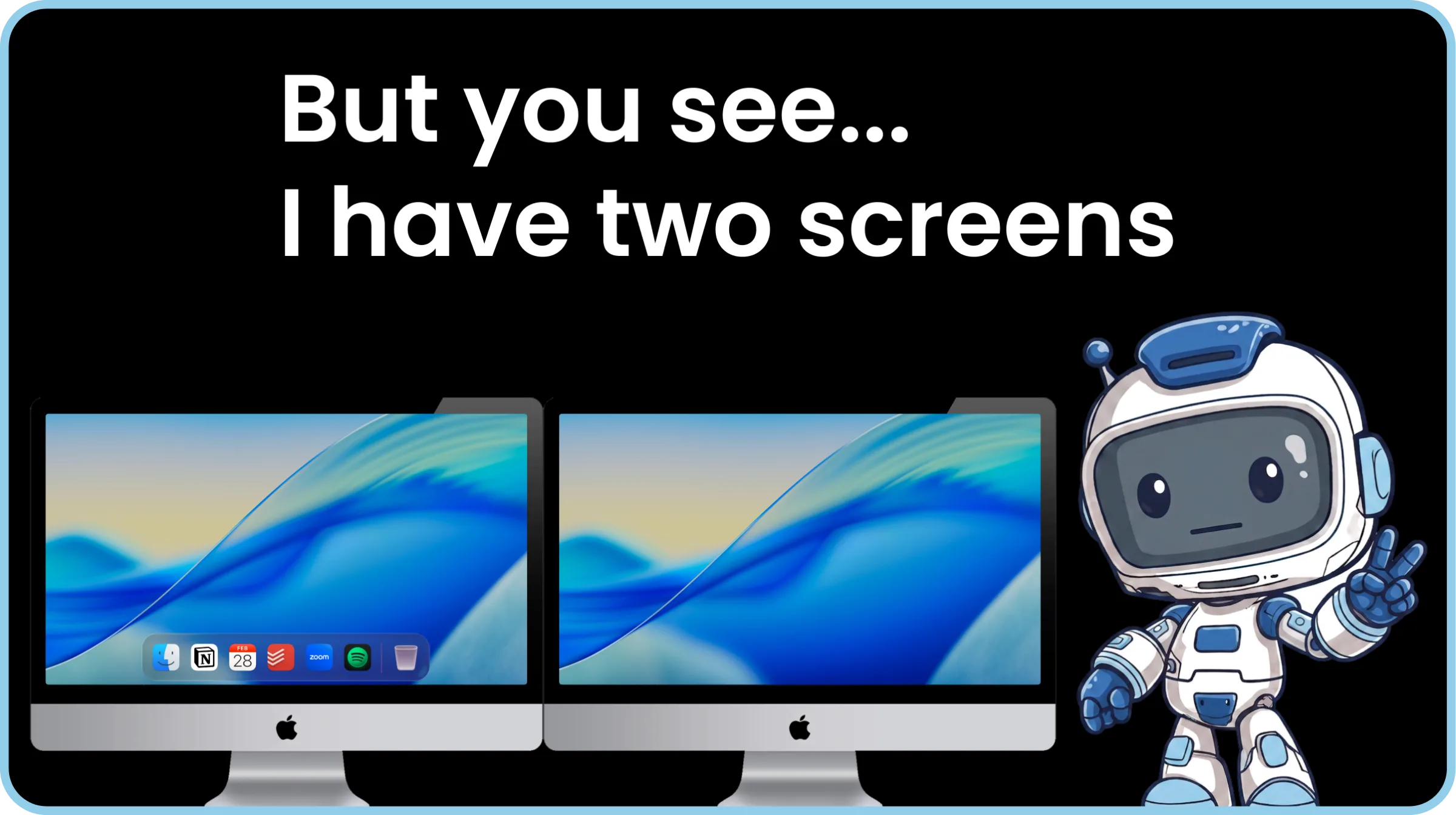
Ideal for multi-monitor setups
Does not interfere with the native Dock
Cons:
Focused on adding extra docks rather than replacing the system Dock
Ideal for: Users needing additional docks for enhanced multitasking without altering the native Dock.
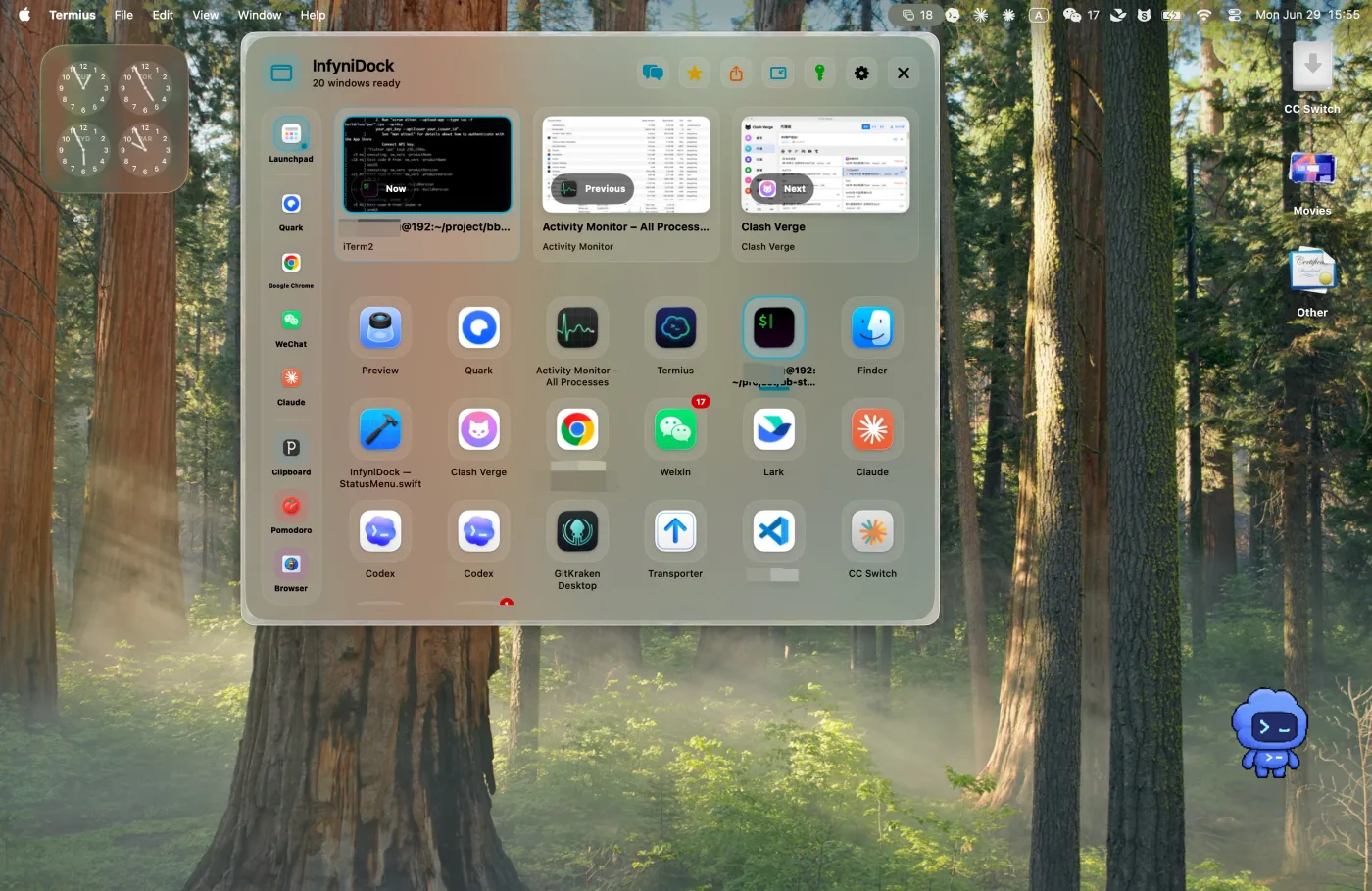
🧩 DockFix
Status: Active
Features:
Customizable Dock with themes and widgets
Community-shared Dock configurations
Enhanced functionality with notification badges and file shelves
Pros:
Extensive customization options
Active community for sharing setups
Cons:
May be overwhelming for users seeking simplicity
Ideal for: Users looking to deeply customize their Dock experience and share configurations with a community.
⚡ SpeedDock
Status: Active
Features:
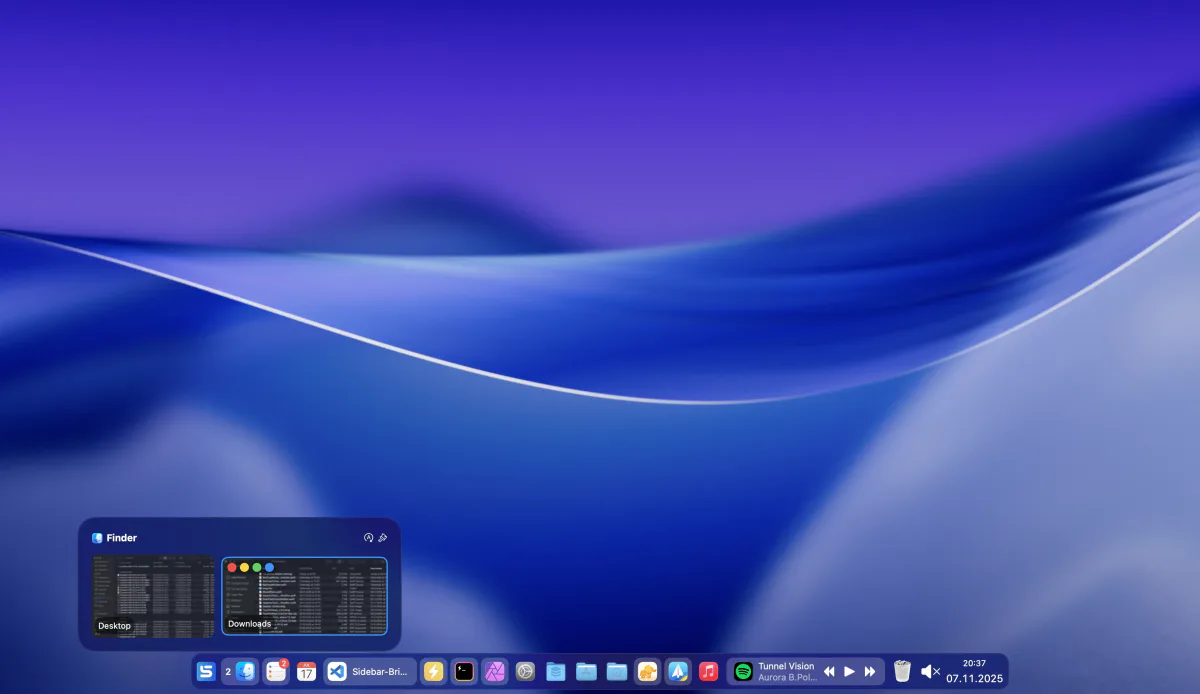
Create customizable docks for your desktop
Docks can float anywhere on screen or be fixed to one edge
Assign docks to different desktop spaces or monitors
Pros:
Flexible dock positioning
Supports multiple monitors and spaces
Cons:
Limited theming options compared to others
Ideal for: Users seeking a straightforward, flexible Dock replacement with multi-monitor support.
🏁 Conclusion
Each Dock alternative offers unique features tailored to different user needs:
DragThing: Great for nostalgia and extensive customization (on older macOS versions).
uBar: Perfect for those who prefer a Windows-like taskbar.
ActiveDock: Offers a rich set of features for users wanting a customizable Dock.
ExtraDock: Best for users seeking additional docks to complement the native Dock, especially in multi-monitor setups.
DockFix: Ideal for users wanting deep customization and community-shared configurations.
SpeedDock: Suitable for users needing flexible dock positioning across multiple monitors.
Consider your workflow and preferences to choose the Dock replacement that best suits your needs.