macOS Dual Monitor Dock Setup: What Apple Doesn’t Tell You

A
Appitstudio
3 min read Mac tips
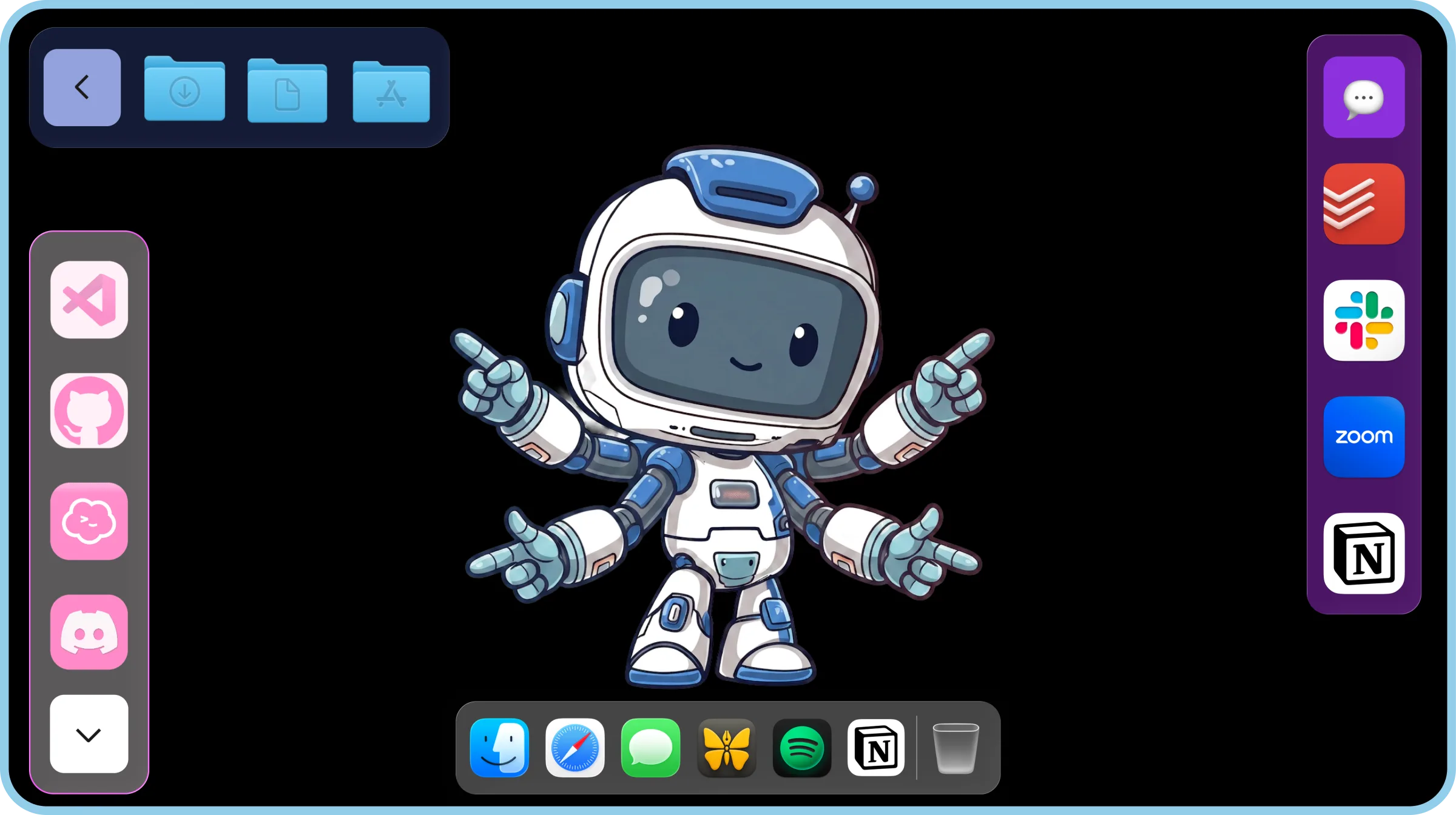
Dual Monitor Dock Setup guide Banner
Photo by AppitStudio

If you're running a dual-monitor setup on macOS, you've likely asked:

"Why does the Dock only show on one screen?" > "Why does it jump between displays whenever I move my mouse?"

It's one of macOS's most frustrating limitations: you only get one Dock, and it lives on your active monitor.

In this article, we'll explain why this happens, and how to set up a better, more customizable dock experience — one that actually works with multiple monitors.

🤦 Why macOS Only Shows One Dock

Here's the deal: Apple's Dock is coded to appear on the screen that's currently active — meaning, the one where your mouse touches the bottom edge.

You can't:

  • Lock it to both screens

  • Duplicate it

  • Pin it in different positions per monitor

This is by design. But for anyone using two or more monitors daily — especially developers, designers, or productivity nerds — it's a huge workflow killer.

😡 Common Complaints from Dual Monitor Mac Users

If this sounds familiar, you're not alone:

  • "I keep moving my mouse to the second screen but the Dock isn't there."

  • "I want a dock for each screen so I don't keep switching focus."

  • "Can I have a permanent Dock on both monitors?"

Unfortunately, Apple doesn't currently allow this — and even in macOS Sonoma, this behavior hasn't changed.

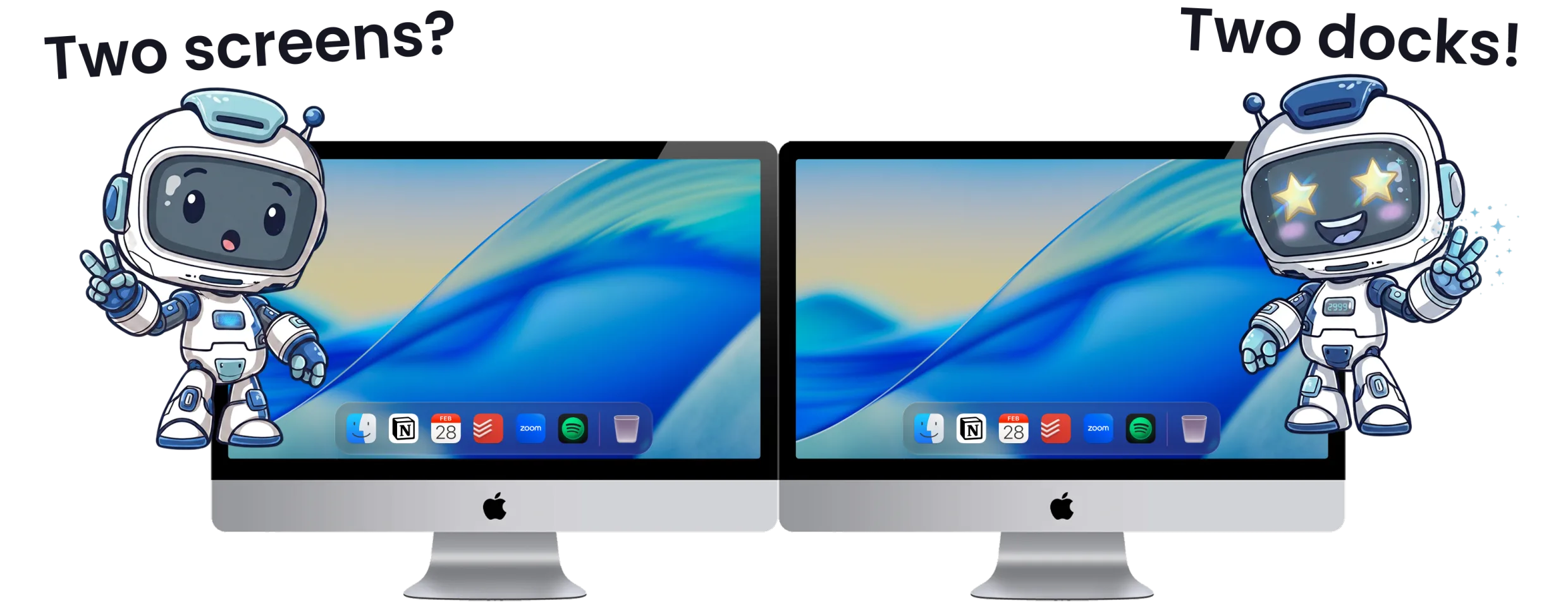
✅ The Better Way: Docks on Every Monitor

Enter ExtraDock — a lightweight macOS utility that solves this exact problem.

With ExtraDock, you can:

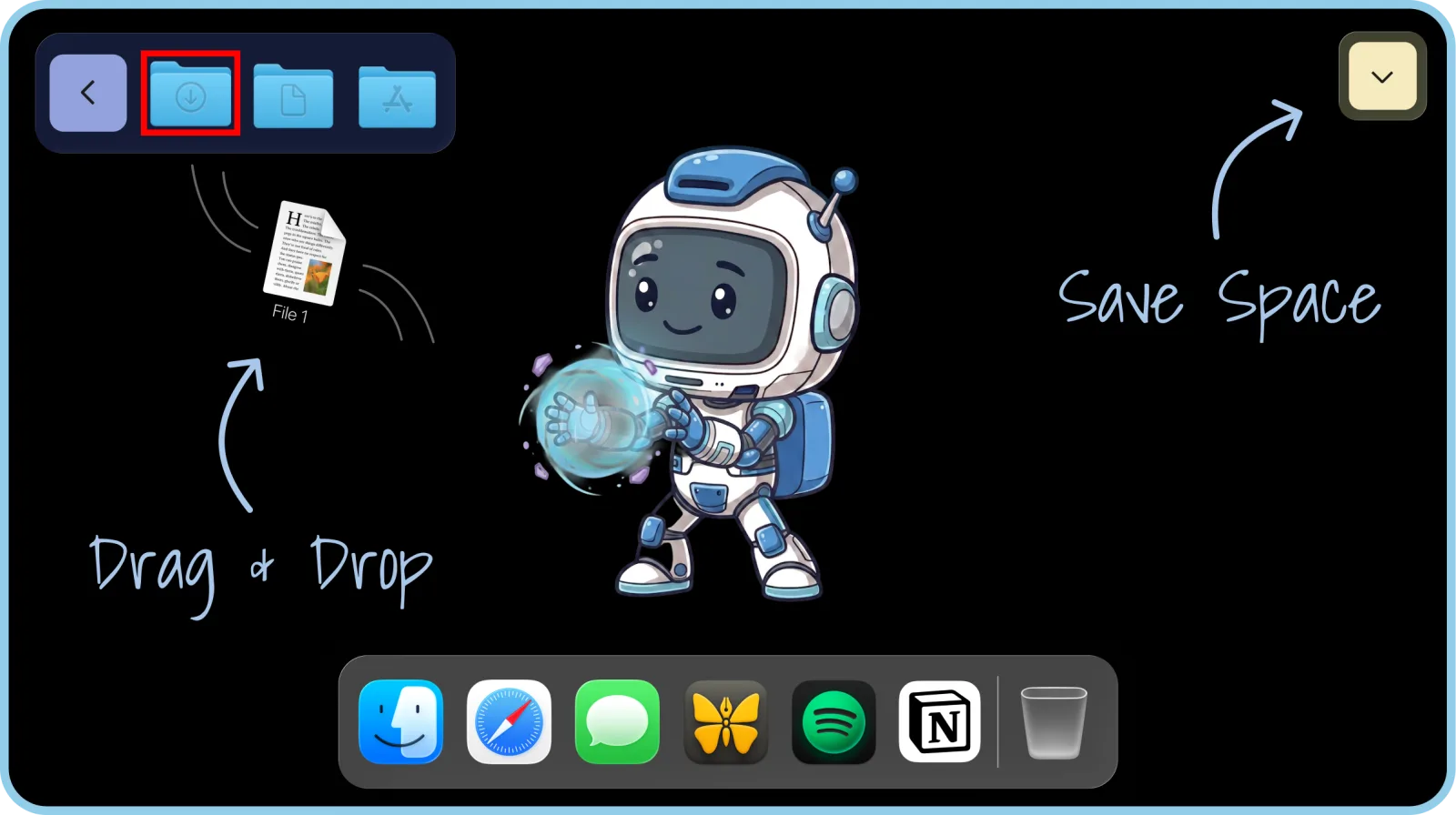
  • Create multiple floating docks across any screen

  • Customize each one with different apps

  • Keep the original macOS Dock intact (no system hacks)

  • Improve speed, focus, and flow on dual displays

It's the Dock experience Apple never shipped.

🛠️ How to Set Up ExtraDock for Dual Monitors

  1. Download ExtraDock by AppitStudio

  2. Install & Open the app and grant permissions (once)

  3. Click "Create New Dock"

  4. Drag the Dock to your second monitor — and pin to top, bottom, left, or right

  5. Repeat if needed for a third screen or different layout

You now have permanent, screen-pinned docks — no more switching, no more chasing.

💡 Real-World Use Cases

Here's how Mac users are putting ExtraDock to work:

  • 👨‍💻 A developer puts communication apps (Slack, Mail) on the left monitor, and code tools on the right.

  • 🎨 A designer pins Figma, Photoshop, and asset folders to a side Dock on their tablet display.

  • 📊 A remote worker keeps folders and productivity tools on a vertical monitor, freeing up main space.

👉 Ready to Stop Fighting Your Dock?

The macOS Dock was built for laptops. ExtraDock is built for modern workspaces — multi-monitor, high-performance, flow-state setups.

Give yourself a better way to work.

➡️ Download ExtraDock now

Related Articles

ExtraDock takes care of your Dock.

What about your Menu Bar?

We just launched our new product - ExtraBar!

ExtraBar gives you a customizable menu bar with instant access to apps, deep links, and custom actions.

extrabar-image